> ## Documentation Index
> Fetch the complete documentation index at: https://docs.vast.ai/llms.txt
> Use this file to discover all available pages before exploring further.
# Generating Video with LTX-2.3 and ComfyUI
[LTX-2.3](https://huggingface.co/Lightricks/LTX-2.3) is the first open-source model that generates synchronized video and audio together in a single pass. Built by Lightricks, this 22B-parameter Diffusion Transformer doesn't just create video — it produces matching audio at the same time, whether that's dialogue with lip-synced characters, ambient soundscapes, or music-driven visuals.
What makes it stand out:
* **Joint audio-video generation** — no need to generate video and audio separately and try to sync them
* **Multiple generation modes** — text-to-video, image-to-video, audio-conditioned video, and keyframe interpolation
* **Fast inference** — the distilled pipeline generates in just 8 denoising steps
* **Open source** — full model weights available on HuggingFace, trainable with LoRA in under an hour
Running LTX-2.3 requires a powerful GPU. Vast.ai gives you on-demand access to the hardware you need, and the pre-built ComfyUI template means you can go from zero to generating videos in minutes — no CLI, SSH, or manual setup required.
## Find and rent your GPU
1. **Setup your Vast account and add credit:** Review the [quickstart guide](/documentation/get-started/quickstart) if you do not have an account with credits loaded.
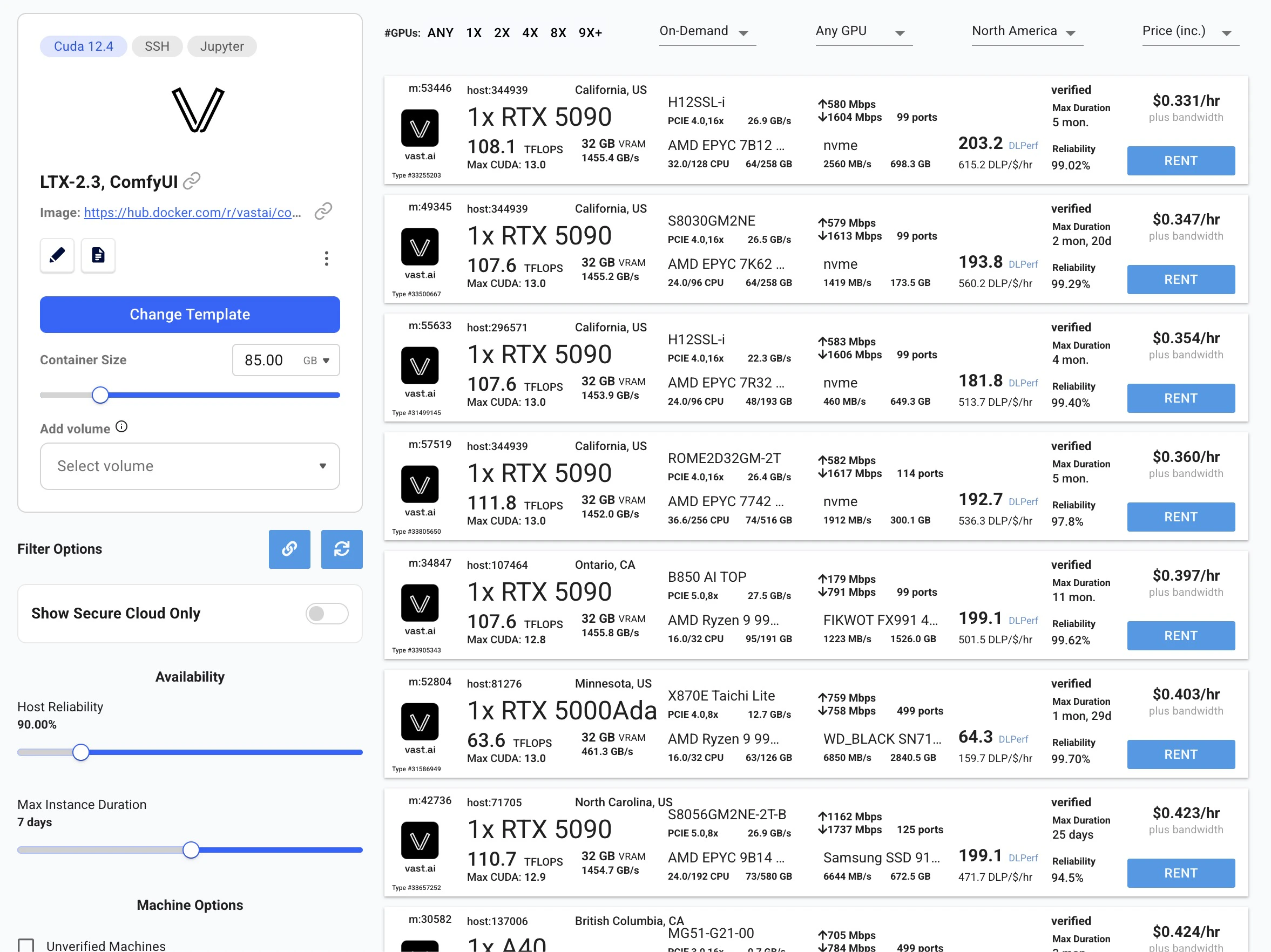
2. **Deploy the LTX-2.3 template:** Go to the [LTX-2.3 model page](https://vast.ai/model/ltx-2-3) and click **Deploy Now**. This takes you to the Vast console with the LTX-2.3 ComfyUI template pre-selected.
3. **Select a GPU:** Choose an instance from the list and click **Rent**.
 ## Wait for provisioning
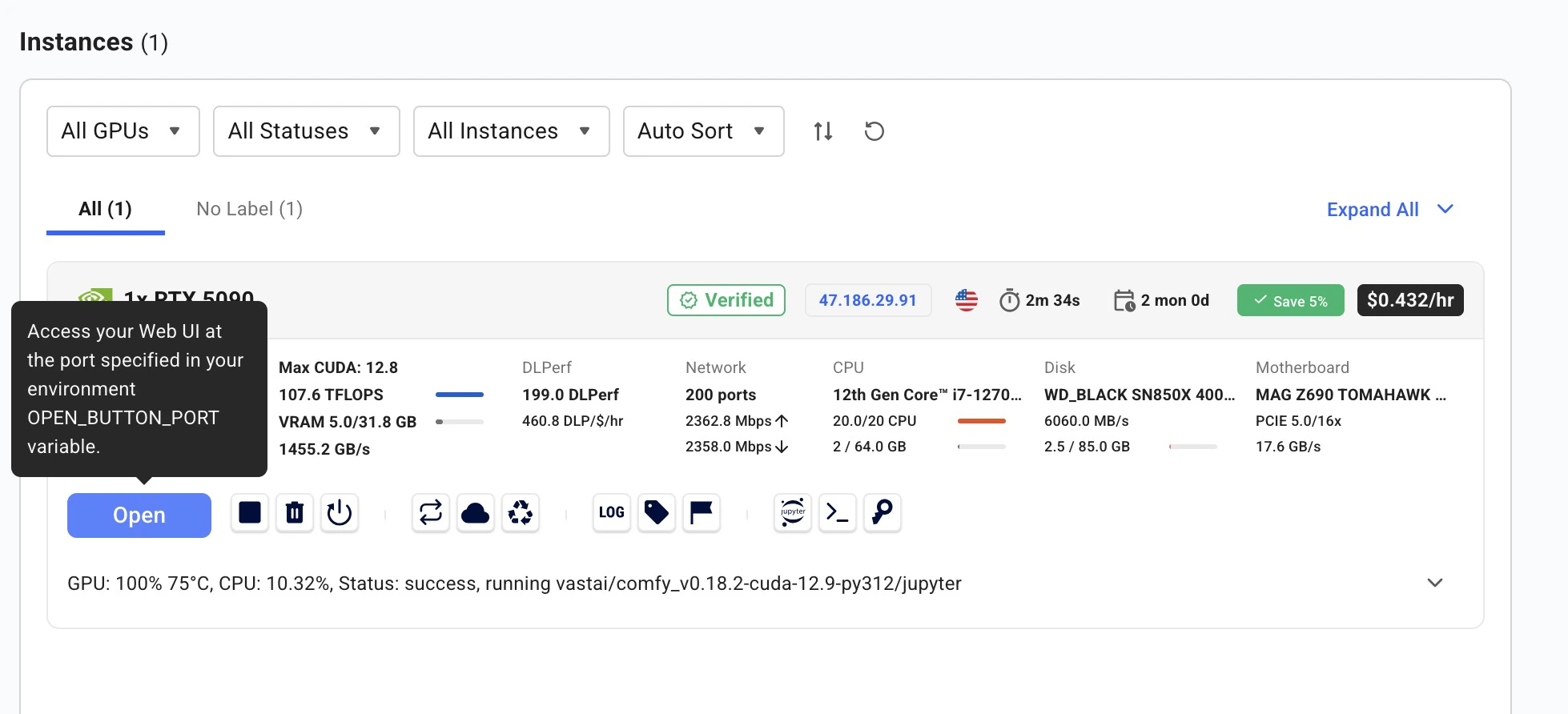
After renting, the instance automatically downloads all required model weights. You'll see a loading screen while models download. On a fast connection this takes just a few minutes. Once complete, the instance status shows a green **Running** indicator.
## Wait for provisioning
After renting, the instance automatically downloads all required model weights. You'll see a loading screen while models download. On a fast connection this takes just a few minutes. Once complete, the instance status shows a green **Running** indicator.
 ## Open ComfyUI
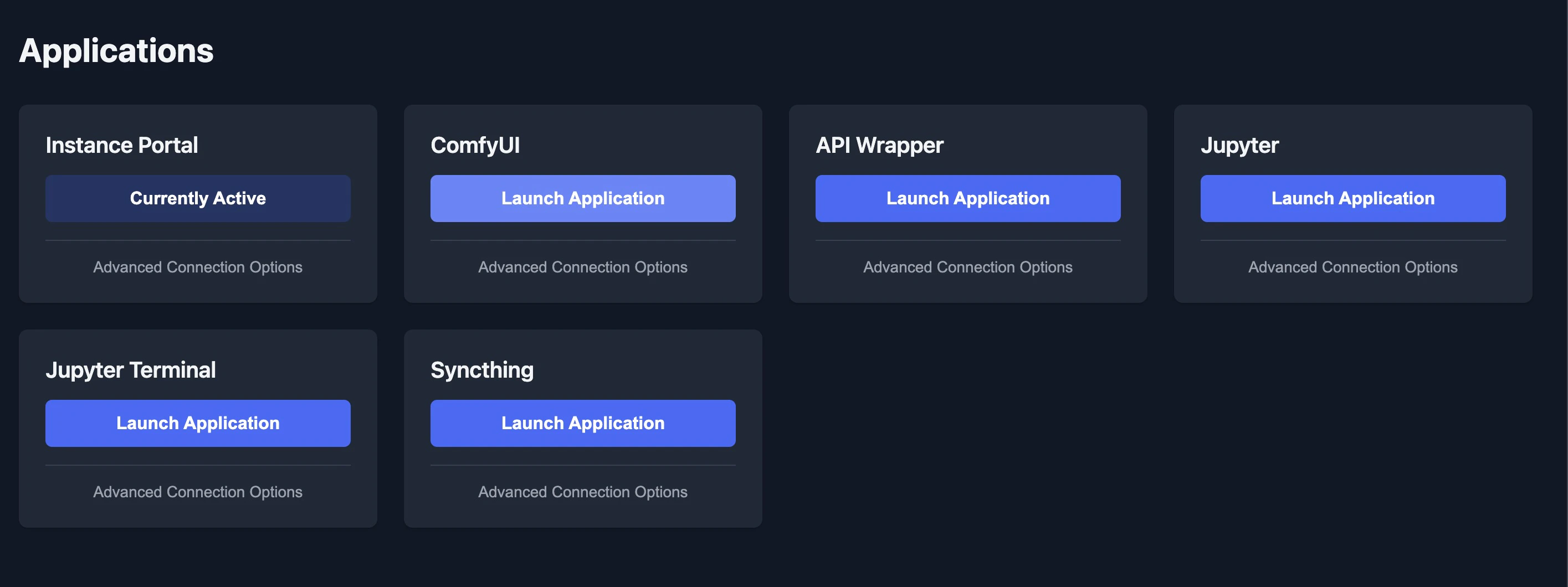
Click the **Open** button on your instance to launch the Instance Portal. Click **Launch Application** under **ComfyUI** to open the visual workflow editor.
## Open ComfyUI
Click the **Open** button on your instance to launch the Instance Portal. Click **Launch Application** under **ComfyUI** to open the visual workflow editor.
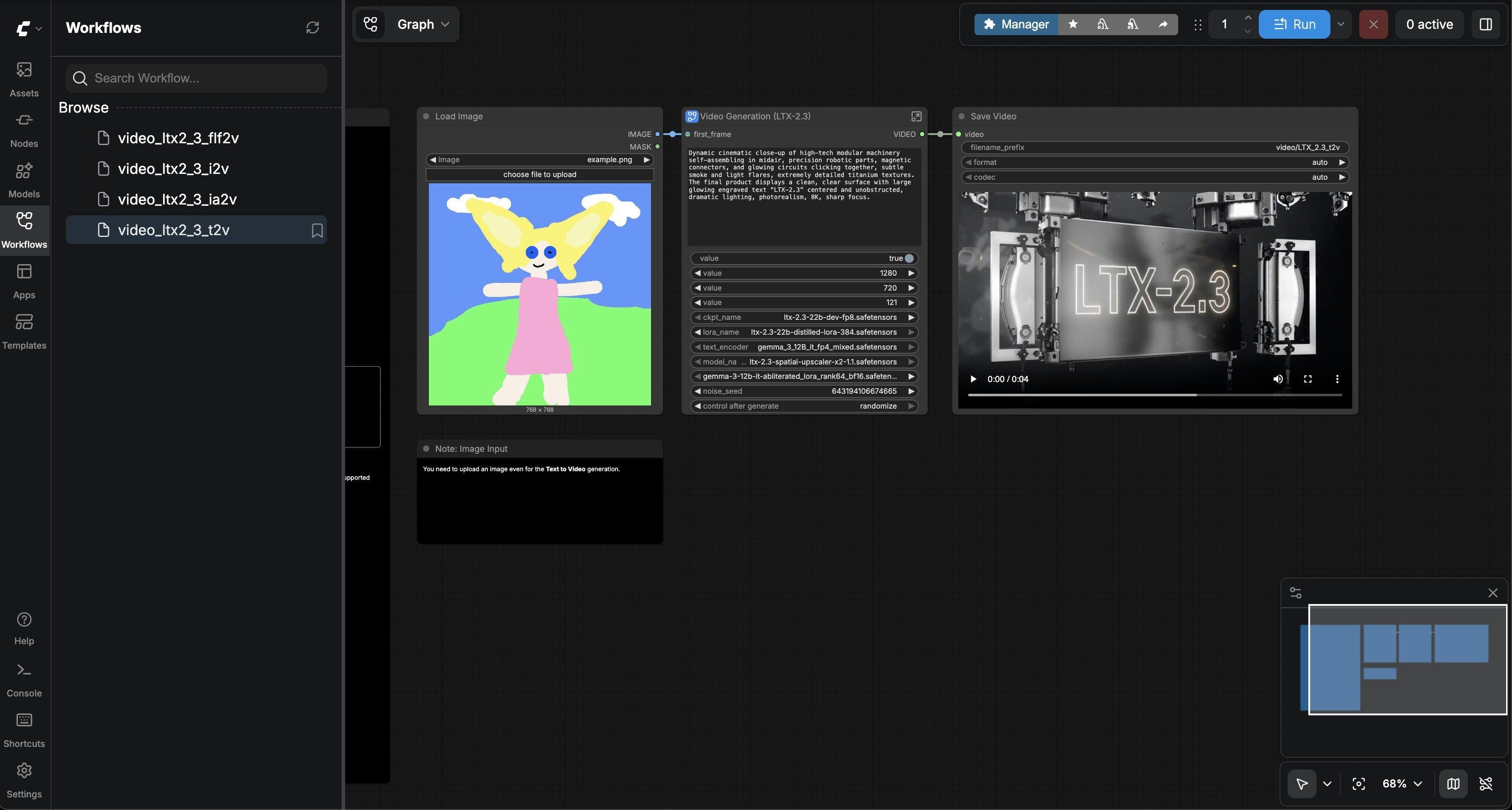
 In the left sidebar under **Workflows > Browse**, you'll see four pre-loaded workflows:
| Workflow | Description |
| -------------------- | -------------------------------- |
| `video_ltx2_3_t2v` | Text-to-Video |
| `video_ltx2_3_i2v` | Image-to-Video |
| `video_ltx2_3_ia2v` | Image + Audio-to-Video |
| `video_ltx2_3_flf2v` | First & Last Frame Interpolation |
## Text-to-Video
Select **video\_ltx2\_3\_t2v** from the sidebar. Enter a descriptive prompt in the **Video Generation** node — describe camera angles, lighting, and motion cinematically. Adjust width, height, and frame count if desired (defaults: 1280x720, 121 frames, 25 fps). Click **Run**.
In the left sidebar under **Workflows > Browse**, you'll see four pre-loaded workflows:
| Workflow | Description |
| -------------------- | -------------------------------- |
| `video_ltx2_3_t2v` | Text-to-Video |
| `video_ltx2_3_i2v` | Image-to-Video |
| `video_ltx2_3_ia2v` | Image + Audio-to-Video |
| `video_ltx2_3_flf2v` | First & Last Frame Interpolation |
## Text-to-Video
Select **video\_ltx2\_3\_t2v** from the sidebar. Enter a descriptive prompt in the **Video Generation** node — describe camera angles, lighting, and motion cinematically. Adjust width, height, and frame count if desired (defaults: 1280x720, 121 frames, 25 fps). Click **Run**.
 The workflow includes automatic prompt enhancement powered by Gemma 3, which expands short prompts into detailed cinematic descriptions.
## Image-to-Video
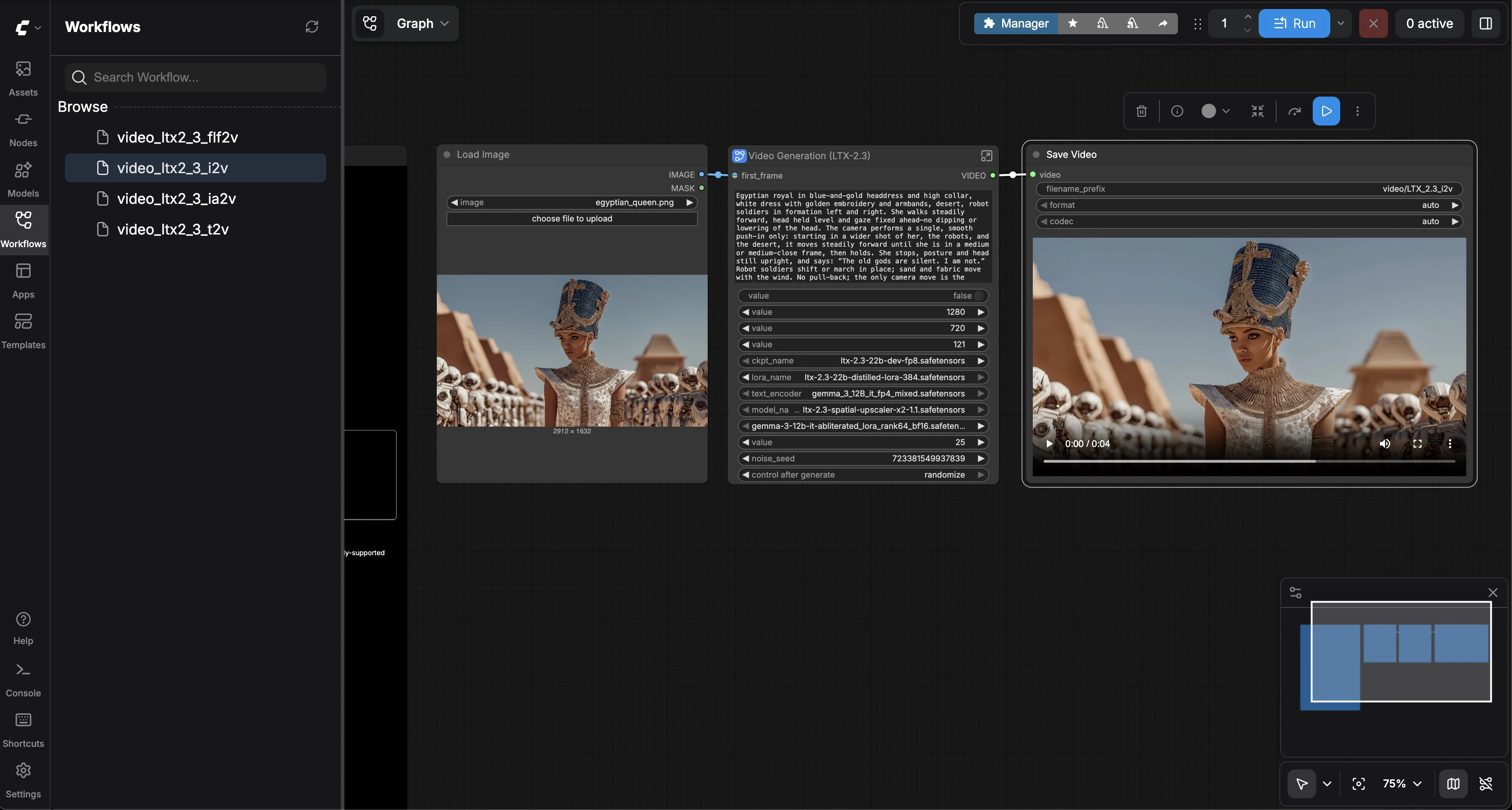
Select **video\_ltx2\_3\_i2v**. Upload a reference image in the **Load Image** node (a sample Egyptian queen image is included). Enter a prompt describing how the image should come to life. Click **Run**. The model uses your image as the first frame and generates consistent motion.
The workflow includes automatic prompt enhancement powered by Gemma 3, which expands short prompts into detailed cinematic descriptions.
## Image-to-Video
Select **video\_ltx2\_3\_i2v**. Upload a reference image in the **Load Image** node (a sample Egyptian queen image is included). Enter a prompt describing how the image should come to life. Click **Run**. The model uses your image as the first frame and generates consistent motion.
 ## Image + Audio-to-Video
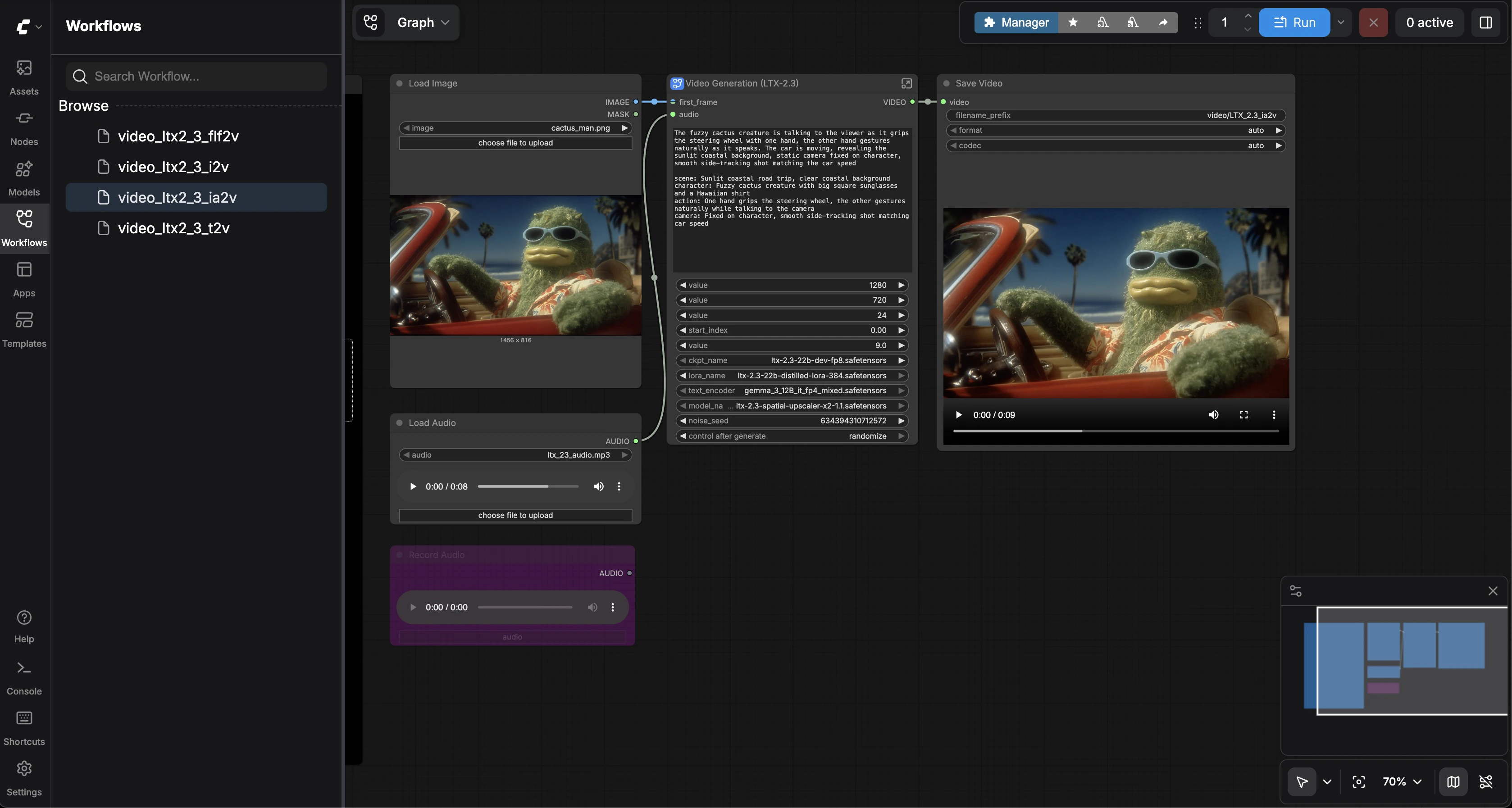
Select **video\_ltx2\_3\_ia2v**. Upload a reference image and an audio file (a sample MP3 is included). Enter a prompt describing the scene. Click **Run**. The model generates video synchronized to the audio — lip movements match dialogue, and scene energy follows the audio's rhythm.
## Image + Audio-to-Video
Select **video\_ltx2\_3\_ia2v**. Upload a reference image and an audio file (a sample MP3 is included). Enter a prompt describing the scene. Click **Run**. The model generates video synchronized to the audio — lip movements match dialogue, and scene energy follows the audio's rhythm.
 ## First & Last Frame Interpolation
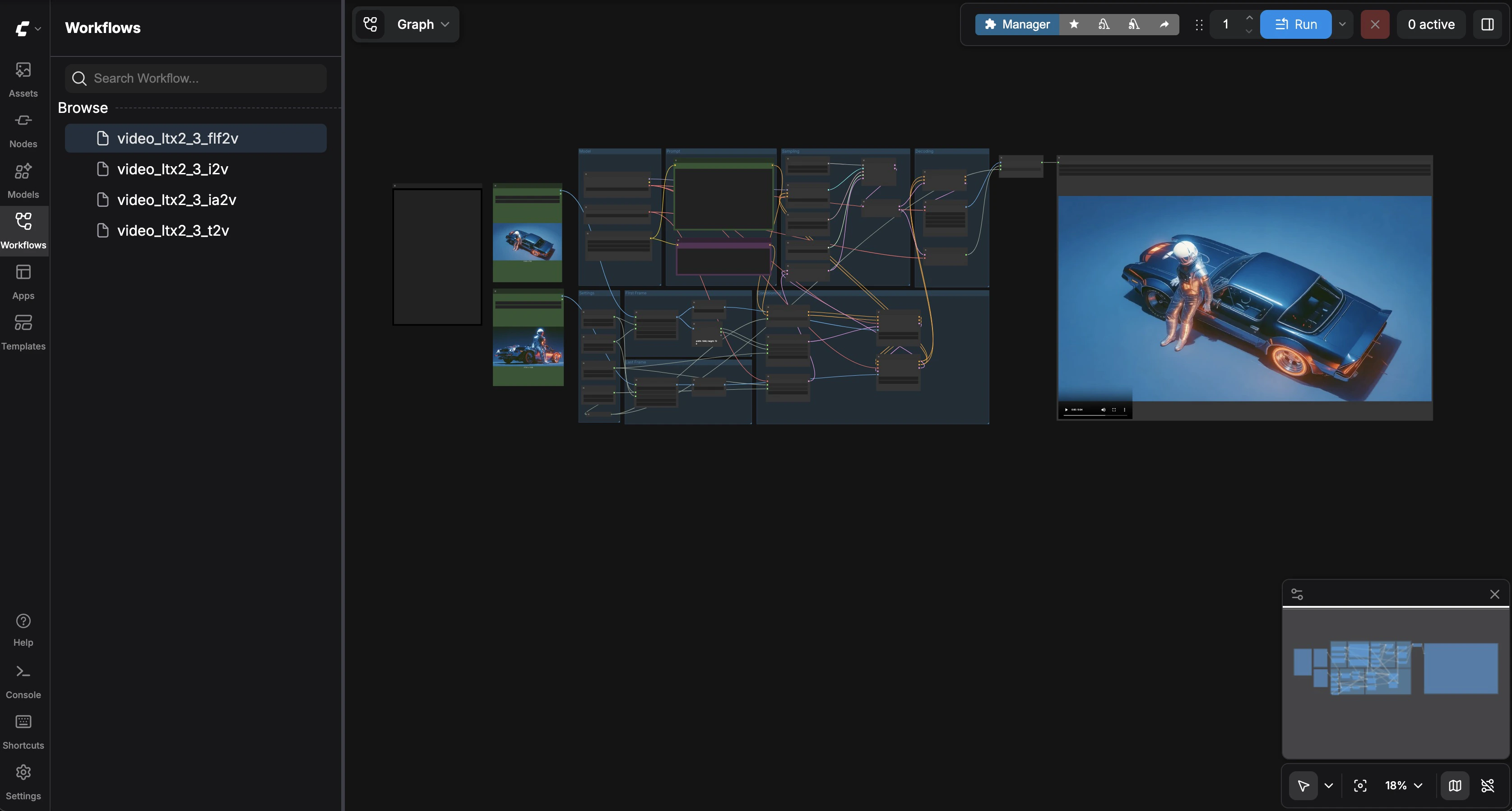
Select **video\_ltx2\_3\_flf2v**. Load two images — a first frame and a last frame (sample car images are included). Enter a prompt describing the transition. Click **Run**. The model generates a smooth video interpolation between your two keyframes.
## First & Last Frame Interpolation
Select **video\_ltx2\_3\_flf2v**. Load two images — a first frame and a last frame (sample car images are included). Enter a prompt describing the transition. Click **Run**. The model generates a smooth video interpolation between your two keyframes.
 ## Cleanup
When finished, go to the [Vast.ai console](https://cloud.vast.ai/instances/) and click **Delete** on your instance to stop charges.
## Resources
* [LTX-2.3 on HuggingFace](https://huggingface.co/Lightricks/LTX-2.3)
* [LTX-2 GitHub Repository](https://github.com/Lightricks/LTX-2)
* [Vast.ai Model Page](https://vast.ai/model/ltx-2-3)
## Cleanup
When finished, go to the [Vast.ai console](https://cloud.vast.ai/instances/) and click **Delete** on your instance to stop charges.
## Resources
* [LTX-2.3 on HuggingFace](https://huggingface.co/Lightricks/LTX-2.3)
* [LTX-2 GitHub Repository](https://github.com/Lightricks/LTX-2)
* [Vast.ai Model Page](https://vast.ai/model/ltx-2-3)