> ## Documentation Index
> Fetch the complete documentation index at: https://docs.vast.ai/llms.txt
> Use this file to discover all available pages before exploring further.
# Reserved Instances
> Save up to 50% on GPU costs by pre-paying for reserved instances. Learn how to convert on-demand instances to reserved pricing.
Reserved instances allow you to get significant discounts (up to 50%) by pre-paying for GPU time. You can convert any on-demand instance to a reserved instance at any time.
## How Reserved Instances Work
You can **convert an on-demand instance into a reserved instance** with a lower hourly rate by pre-paying.
**Key points:**
* Convert any on-demand instance to reserved pricing
* Discounts up to 50% based on commitment length
* Pre-paid credits are locked to that specific instance
* Cannot migrate between hosts
## Creating a Reserved Instance
**Step 1, Rent the Instance**
1. Go to [Search](https://cloud.vast.ai/create/) page.
2. Find a GPU that meets your requirements, click the **Rent** button.
3. This creates an **on-demand instance**.
**Step 2, Convert to a Reserved Instance**
1. Go to the [**Instances**](https://cloud.vast.ai/instances/) page.
2. On your instance card, find the **green** **discount badge**.
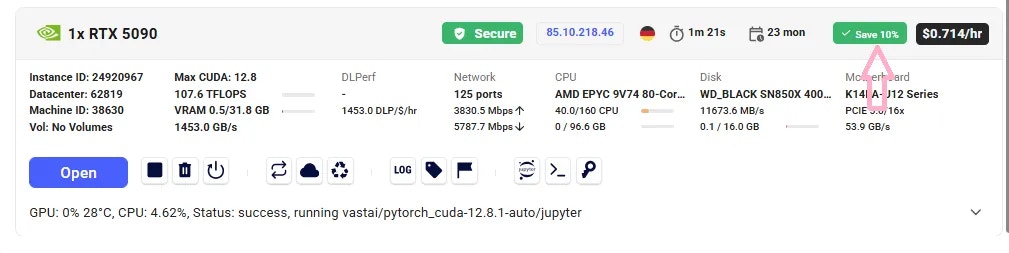 3. Click the badge, a new window will open with the **available pre-paid periods** (e.g., 1 month, 3 months, 6 months).
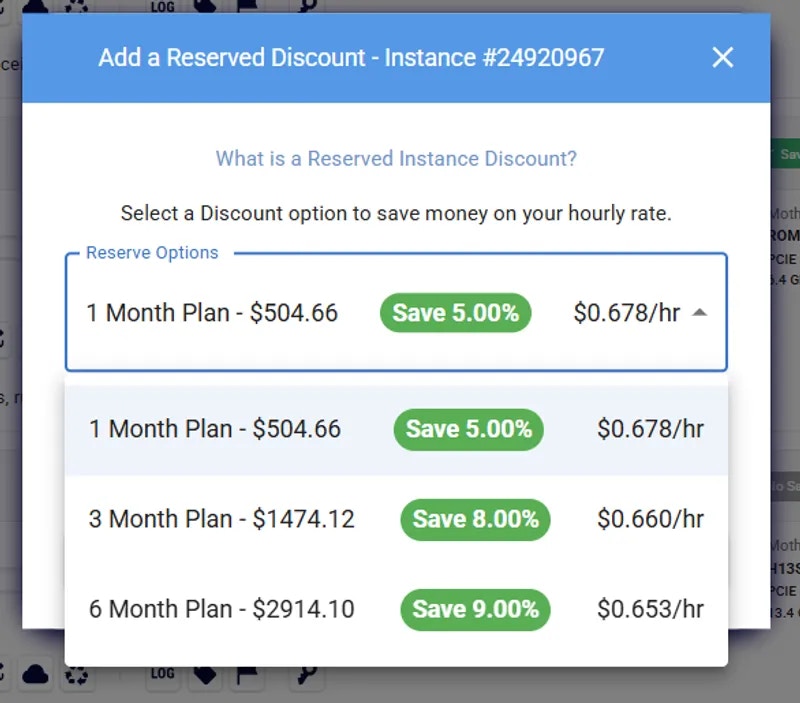 4. Select your preferred period and confirm. The system calculates deposit and discount automatically.
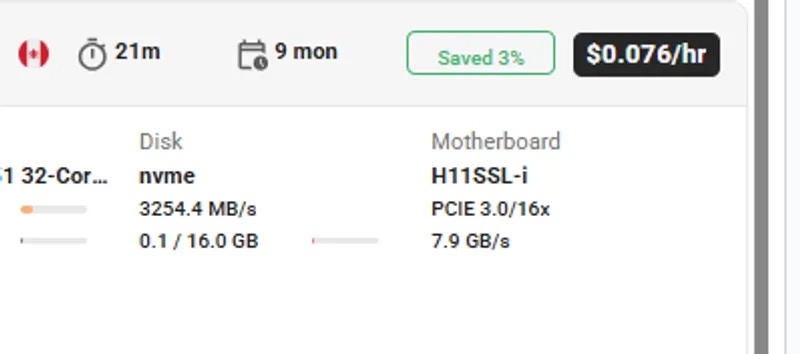
Your instance is now reserved at the discounted rate. When an instance is converted to a reserved instance, you will see **Saved %** badge on the instance card to indicate the reserved discount is active.
4. Select your preferred period and confirm. The system calculates deposit and discount automatically.
Your instance is now reserved at the discounted rate. When an instance is converted to a reserved instance, you will see **Saved %** badge on the instance card to indicate the reserved discount is active.
 1. **Add credits** to your account (if needed).
2. Create an instance, get the instance id. CLI:`vastai show instances`
3. Run the following command, where: **ID** is the id of instance to prepay for **AMOUNT** is amount of instance credit prepayment (default discount func of 0.2 for 1 month, 0.3 for 3 months)
```cli CLI theme={null}
vastai prepay instance ID AMOUNT
```
An example:
```cli CLI theme={null}
vastai prepay instance 24973511 50
prepaid for 0.546 months of instance 24973511 applying $50.0 credits for a discount of 3.5000000000000004%
```
## Important Considerations
* If you later change your mind, you can withdrawal only any fraction of the funds that remain after paying the difference between the on demand and discounted price over the current duration.
* If the machine fails the implicit or explicit Service Level Agreement and is deverified the full balance can be withdrawn without penalty.
* Reserved instances cannot migrate between different hosts.
**Important:** Every time you add credits, your discount is recalculated. Avoid adding small amounts mid-term, you could end up with a worse rate. For example: If you have a 3-month reservation and add 2 weeks of credit with only 2 weeks left, your discount could drop.
## Extending a Reserved Instance
You can extend your reservation at any time:
Same flow as above - via **Save** badge on instance card.
More flexibility, deposit any amount you choose. For example:
```bash Bash theme={null}
vastai prepay instance 24973511 50
prepaid for 0.546 months of instance 24973511 applying $50.0 credits for a discount of 3.5000000000000004%
```
## Refunds
You can cancel (destroy) a reserved / prepaid instance to get part of your deposit back. Refund = Remaining deposit **minus** total discount already received.
**Example:**
* On-demand: \$1/hr → \$720/month
* Reserved (1 month): \$576/month
* Cancel immediately → Refund = \$576
* Cancel after 15 days → Remaining = \$288 → Refund = \$216 (after discount penalty)
* Cancel at the end → Refund = \$0
You will see the refund on the Billing page -> Invoices table.
## Preview Reserved Pricing Before Renting
You can check the reserved price before committing:
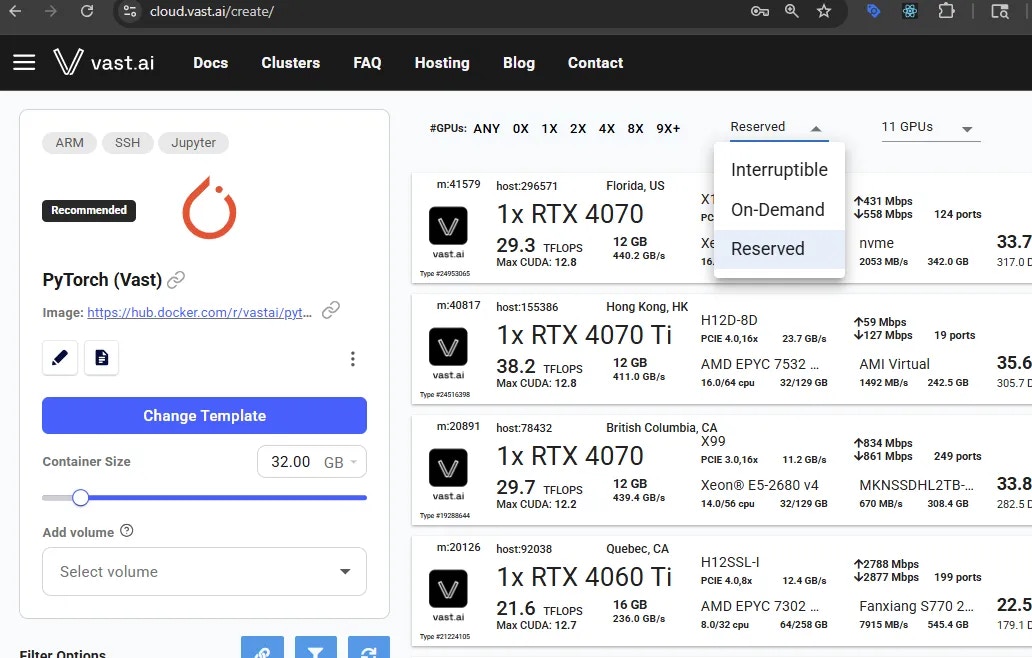
1. Go to the **Search** page.
2. Switch the **On-demand** filter to the **Reserved** filter.
1. **Add credits** to your account (if needed).
2. Create an instance, get the instance id. CLI:`vastai show instances`
3. Run the following command, where: **ID** is the id of instance to prepay for **AMOUNT** is amount of instance credit prepayment (default discount func of 0.2 for 1 month, 0.3 for 3 months)
```cli CLI theme={null}
vastai prepay instance ID AMOUNT
```
An example:
```cli CLI theme={null}
vastai prepay instance 24973511 50
prepaid for 0.546 months of instance 24973511 applying $50.0 credits for a discount of 3.5000000000000004%
```
## Important Considerations
* If you later change your mind, you can withdrawal only any fraction of the funds that remain after paying the difference between the on demand and discounted price over the current duration.
* If the machine fails the implicit or explicit Service Level Agreement and is deverified the full balance can be withdrawn without penalty.
* Reserved instances cannot migrate between different hosts.
**Important:** Every time you add credits, your discount is recalculated. Avoid adding small amounts mid-term, you could end up with a worse rate. For example: If you have a 3-month reservation and add 2 weeks of credit with only 2 weeks left, your discount could drop.
## Extending a Reserved Instance
You can extend your reservation at any time:
Same flow as above - via **Save** badge on instance card.
More flexibility, deposit any amount you choose. For example:
```bash Bash theme={null}
vastai prepay instance 24973511 50
prepaid for 0.546 months of instance 24973511 applying $50.0 credits for a discount of 3.5000000000000004%
```
## Refunds
You can cancel (destroy) a reserved / prepaid instance to get part of your deposit back. Refund = Remaining deposit **minus** total discount already received.
**Example:**
* On-demand: \$1/hr → \$720/month
* Reserved (1 month): \$576/month
* Cancel immediately → Refund = \$576
* Cancel after 15 days → Remaining = \$288 → Refund = \$216 (after discount penalty)
* Cancel at the end → Refund = \$0
You will see the refund on the Billing page -> Invoices table.
## Preview Reserved Pricing Before Renting
You can check the reserved price before committing:
1. Go to the **Search** page.
2. Switch the **On-demand** filter to the **Reserved** filter.
 3. Set the **duration filter** (e.g., 1 month), if needed.
4. Hover over the **Rent** button, you'll see a breakdown, including a **Reserved cost** section.
3. Set the **duration filter** (e.g., 1 month), if needed.
4. Hover over the **Rent** button, you'll see a breakdown, including a **Reserved cost** section.
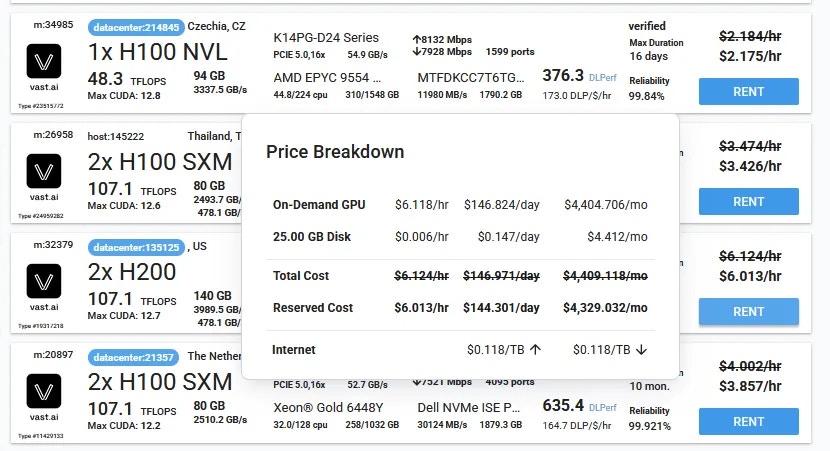 5. If you like the price, click **Rent** and follow the steps to convert it to a reserved instance.
## Common Questions
### Can I switch an existing on-demand instance to reserved?
Yes, if there is an available discount. Go to the **Instances** page, click the **discount badge** on your instance card, choose a period, and confirm.
### Can I extend a reserved instance?
Yes, you can extend it anytime via the same discount badge in the Instances page, as long as the instance still has an active discount period. You can use the CLI for custom amounts.
### What happens if I cancel / delete a reserved instance early?
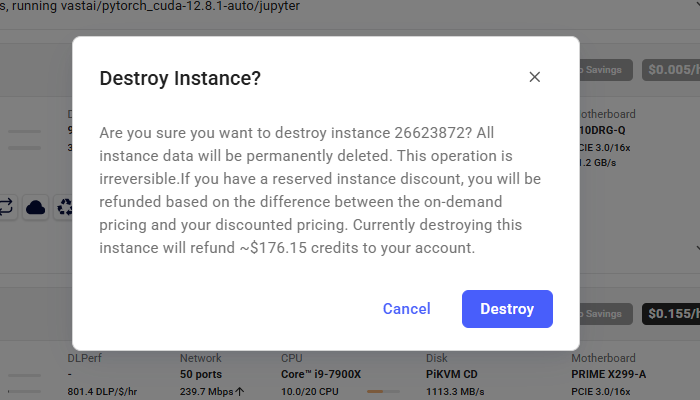
You'll receive a partial refund of your unused pre-paid balance, minus the total discount received so far. The refund amount will be displayed in the delete instance modal and will also appear on the Billing page after you delete the instance.
5. If you like the price, click **Rent** and follow the steps to convert it to a reserved instance.
## Common Questions
### Can I switch an existing on-demand instance to reserved?
Yes, if there is an available discount. Go to the **Instances** page, click the **discount badge** on your instance card, choose a period, and confirm.
### Can I extend a reserved instance?
Yes, you can extend it anytime via the same discount badge in the Instances page, as long as the instance still has an active discount period. You can use the CLI for custom amounts.
### What happens if I cancel / delete a reserved instance early?
You'll receive a partial refund of your unused pre-paid balance, minus the total discount received so far. The refund amount will be displayed in the delete instance modal and will also appear on the Billing page after you delete the instance.
 ### What happens if I stop a reserved instance?
If you stop the instance, the GPU will be released like any other instance and may be rented by another user.
## Next Steps
* Learn about other [rental types](/guides/instances/pricing#rental-types)
* Understand [billing basics](/guides/reference/billing)
* View your [current instances](https://cloud.vast.ai/instances/)
### What happens if I stop a reserved instance?
If you stop the instance, the GPU will be released like any other instance and may be rented by another user.
## Next Steps
* Learn about other [rental types](/guides/instances/pricing#rental-types)
* Understand [billing basics](/guides/reference/billing)
* View your [current instances](https://cloud.vast.ai/instances/)