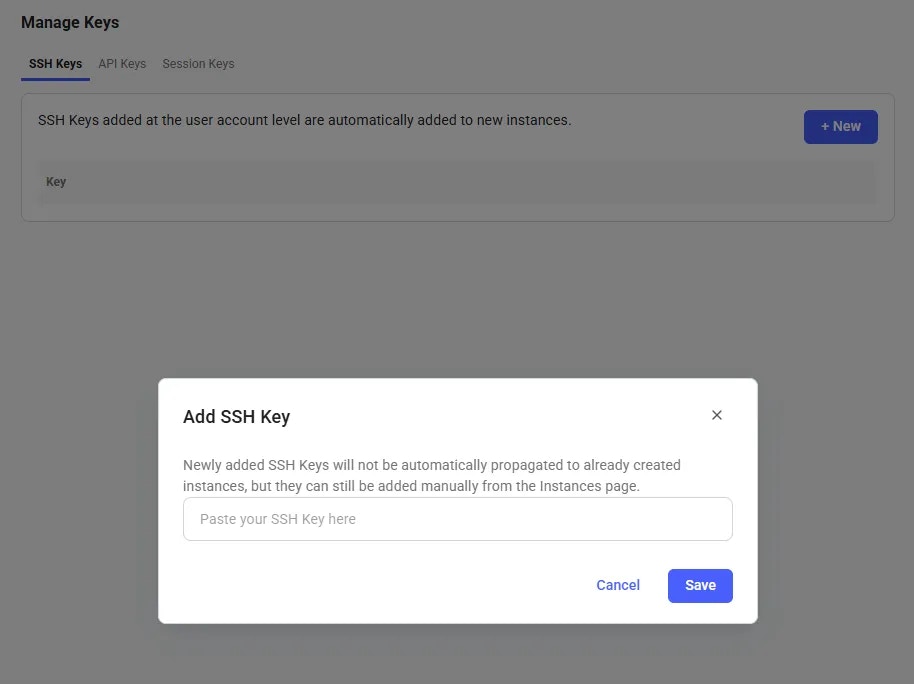
 3. **Generate a new SSH key pair** (you will need your vast API key):
3. **Generate a new SSH key pair** (you will need your vast API key):
3. **Generate a new SSH key pair** (you will need your vast API key):
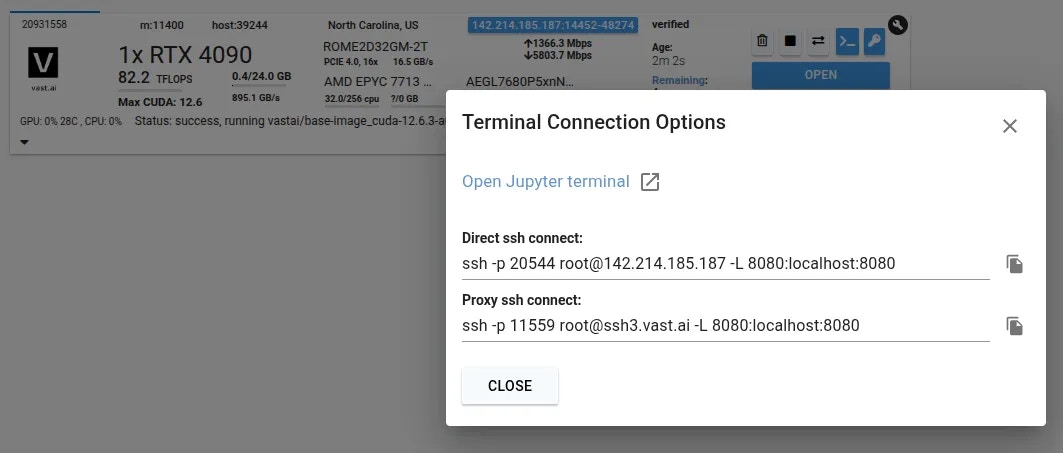 Now you can enter the connection command string into your terminal
```bash Bash theme={null}
ssh -p 20544 root@142.214.185.187 -L 8080:localhost:8080
The authenticity of host '[142.214.185.187]:20544 ([142.214.185.187]:20544)' can't be established.
ED25519 key fingerprint is SHA256:WTUphznpN0zikMp+L5EtZpiCH6EeZ2PA/7+DSXDRjT0.
This key is not known by any other names.
Are you sure you want to continue connecting (yes/no/[fingerprint])? yes
```
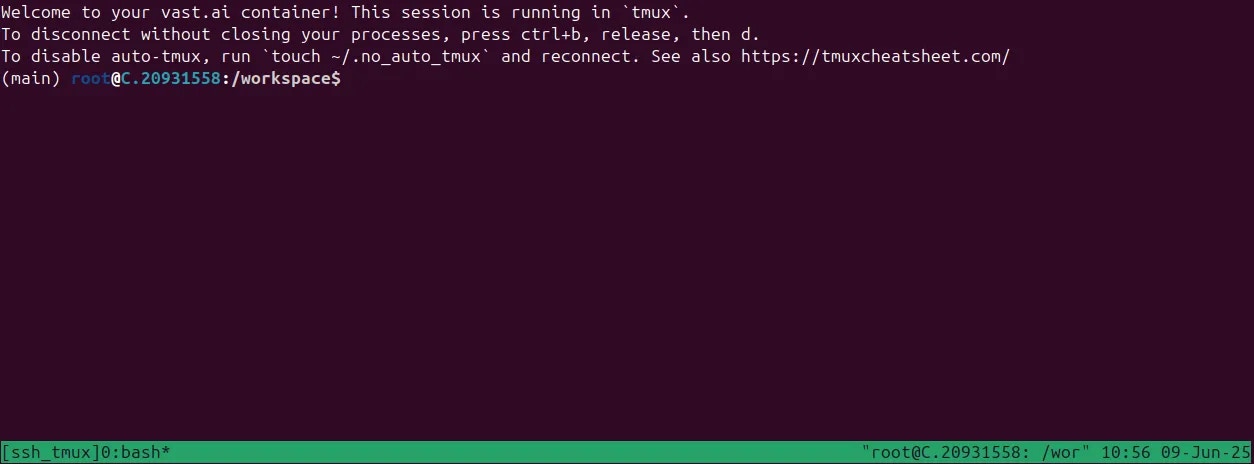
You should now see a screen similar to this. You will, by default, be placed into a tmux session.
Now you can enter the connection command string into your terminal
```bash Bash theme={null}
ssh -p 20544 root@142.214.185.187 -L 8080:localhost:8080
The authenticity of host '[142.214.185.187]:20544 ([142.214.185.187]:20544)' can't be established.
ED25519 key fingerprint is SHA256:WTUphznpN0zikMp+L5EtZpiCH6EeZ2PA/7+DSXDRjT0.
This key is not known by any other names.
Are you sure you want to continue connecting (yes/no/[fingerprint])? yes
```
You should now see a screen similar to this. You will, by default, be placed into a tmux session.
 ### Direct vs Proxy Connections
Vast offers both proxy (default) and direct connection methods for SSH:
* **Proxy SSH**: Works on all machines, slower for data transfer, uses Vast proxy server
* **Direct SSH**: Requires machines with open ports, faster and more reliable, preferred method
## Tmux
We connect you to a tmux session by default for reliability and to prevent unintentional termination of foreground processes. You can create a new bash terminal window with `ctrl+b` + `c`. Cycle through your windows with `ctrl+b` + `n`
There is an excellent guide for getting to grips with tmux at [https://tmuxcheatsheet.com](https://tmuxcheatsheet.com/)
If, however, you would prefer to disable TMUX, you can apply the following either in a terminal or from your template's on-start section.
```text Text theme={null}
touch ~/.no_auto_tmux
```
## SSH Local Port Forwarding
An often overlooked feature of SSH is its ability to forward local ports to another machine. When you access a server remotely over SSH, you can make ports from the remote machine available as if they were listening on your own device. This is a secure alternative to opening ports on the public interface as all data is transported over the SSH connection.
```bash Bash theme={null}
ssh -p 1234 root@180.123.123.123 -L 8080:localhost:8080 -L 5000:localhost:5000
```
This SSH command connects to the remote instance and sets up **local port forwarding** (SSH tunneling):
**Connection details:**
* Connects to IP 180.123.123.123 as user root
* Uses port 1234 instead of the default SSH port 22
**Port forwarding (the key part):**
* `-L 8080:localhost:8080` - Creates a tunnel so when you access localhost:8080 on your local machine, it forwards to port `8080` on the remote server
* `-L 5000:localhost:5000` - Same thing for port `5000`
You can repeat the `-L` arguments to forward as many ports as you need.
**What this means:** After connecting, you can open your web browser and go to [https://localhost:8080](https://localhost:8080) or [http://localhost:5000](http://localhost:5000) on your local computer, and you'll actually be accessing services running on those ports on the remote server. It's like creating secure "tunnels" through the SSH connection to reach applications on the remote machine that might not be directly accessible from the internet.
## SSH Alternative - Jupyter Terminal
As a simple alternative to SSH, you might like to consider Jupyter Terminal instead. All instances started in Jupyter launch mode will have this enabled. It is a very straightforward web-based terminal with session persistence. It's great for a quick CLI session.
Access the terminal from the SSH connections interface.
### Direct vs Proxy Connections
Vast offers both proxy (default) and direct connection methods for SSH:
* **Proxy SSH**: Works on all machines, slower for data transfer, uses Vast proxy server
* **Direct SSH**: Requires machines with open ports, faster and more reliable, preferred method
## Tmux
We connect you to a tmux session by default for reliability and to prevent unintentional termination of foreground processes. You can create a new bash terminal window with `ctrl+b` + `c`. Cycle through your windows with `ctrl+b` + `n`
There is an excellent guide for getting to grips with tmux at [https://tmuxcheatsheet.com](https://tmuxcheatsheet.com/)
If, however, you would prefer to disable TMUX, you can apply the following either in a terminal or from your template's on-start section.
```text Text theme={null}
touch ~/.no_auto_tmux
```
## SSH Local Port Forwarding
An often overlooked feature of SSH is its ability to forward local ports to another machine. When you access a server remotely over SSH, you can make ports from the remote machine available as if they were listening on your own device. This is a secure alternative to opening ports on the public interface as all data is transported over the SSH connection.
```bash Bash theme={null}
ssh -p 1234 root@180.123.123.123 -L 8080:localhost:8080 -L 5000:localhost:5000
```
This SSH command connects to the remote instance and sets up **local port forwarding** (SSH tunneling):
**Connection details:**
* Connects to IP 180.123.123.123 as user root
* Uses port 1234 instead of the default SSH port 22
**Port forwarding (the key part):**
* `-L 8080:localhost:8080` - Creates a tunnel so when you access localhost:8080 on your local machine, it forwards to port `8080` on the remote server
* `-L 5000:localhost:5000` - Same thing for port `5000`
You can repeat the `-L` arguments to forward as many ports as you need.
**What this means:** After connecting, you can open your web browser and go to [https://localhost:8080](https://localhost:8080) or [http://localhost:5000](http://localhost:5000) on your local computer, and you'll actually be accessing services running on those ports on the remote server. It's like creating secure "tunnels" through the SSH connection to reach applications on the remote machine that might not be directly accessible from the internet.
## SSH Alternative - Jupyter Terminal
As a simple alternative to SSH, you might like to consider Jupyter Terminal instead. All instances started in Jupyter launch mode will have this enabled. It is a very straightforward web-based terminal with session persistence. It's great for a quick CLI session.
Access the terminal from the SSH connections interface.
 ## Troubleshooting
### Permission Denied (publickey)
If you get this error when trying to SSH:
1. Ensure your SSH key is added to your [Vast account](https://cloud.vast.ai/manage-keys/)
2. Verify you're using the correct private key
3. Check key file permissions: `chmod 600 ~/.ssh/id_ed25519`
4. Use `-vv` flag for detailed debug info: `ssh -vv -p PORT root@IP`
### SSH Key Changes
* New account keys only apply to NEW instances created after adding the key
* Existing instances keep their original keys (won't get new keys automatically)
* For VM instances, changing keys requires recreating the VM
* To add keys to existing instances, use the instance-specific SSH interface
### General Connection Issues
You can often determine the exact cause of a connection failure by using the -vv arguments with ssh to get more information.
Common reasons include:
* Using the wrong private key
* Incorrect permissions for your private key
* Public key not added to instance or account
* Connecting to the wrong port
## SCP & SFTP File Transfer
Both **SCP** (Secure Copy Protocol) and **SFTP** (SSH File Transfer Protocol) are tools for securely transferring files that piggyback on the SSH protocol. They use the same authentication and encryption as SSH.
### SCP (Secure Copy Protocol)
* **What it is:** Simple, command-line tool for copying files between local and remote machines
* **Best for:** Quick, one-time file transfers
* **Syntax:** `scp -P
## Troubleshooting
### Permission Denied (publickey)
If you get this error when trying to SSH:
1. Ensure your SSH key is added to your [Vast account](https://cloud.vast.ai/manage-keys/)
2. Verify you're using the correct private key
3. Check key file permissions: `chmod 600 ~/.ssh/id_ed25519`
4. Use `-vv` flag for detailed debug info: `ssh -vv -p PORT root@IP`
### SSH Key Changes
* New account keys only apply to NEW instances created after adding the key
* Existing instances keep their original keys (won't get new keys automatically)
* For VM instances, changing keys requires recreating the VM
* To add keys to existing instances, use the instance-specific SSH interface
### General Connection Issues
You can often determine the exact cause of a connection failure by using the -vv arguments with ssh to get more information.
Common reasons include:
* Using the wrong private key
* Incorrect permissions for your private key
* Public key not added to instance or account
* Connecting to the wrong port
## SCP & SFTP File Transfer
Both **SCP** (Secure Copy Protocol) and **SFTP** (SSH File Transfer Protocol) are tools for securely transferring files that piggyback on the SSH protocol. They use the same authentication and encryption as SSH.
### SCP (Secure Copy Protocol)
* **What it is:** Simple, command-line tool for copying files between local and remote machines
* **Best for:** Quick, one-time file transfers
* **Syntax:** `scp -P  ### Open Remote Window