> ## Documentation Index
> Fetch the complete documentation index at: https://docs.vast.ai/llms.txt
> Use this file to discover all available pages before exploring further.
# Managing Instances
> Learn how to manage running instances - start, stop, destroy, monitor status, and handle common operational tasks.
## Overview
The Instances page ([cloud.vast.ai/instances](https://cloud.vast.ai/instances)) is your central hub for managing rented instances. From here you can:
* View instance status and information
* Start, stop, and destroy instances
* Access connection details
* Monitor resource usage
* Transfer data between instances
## Instance Card Interface
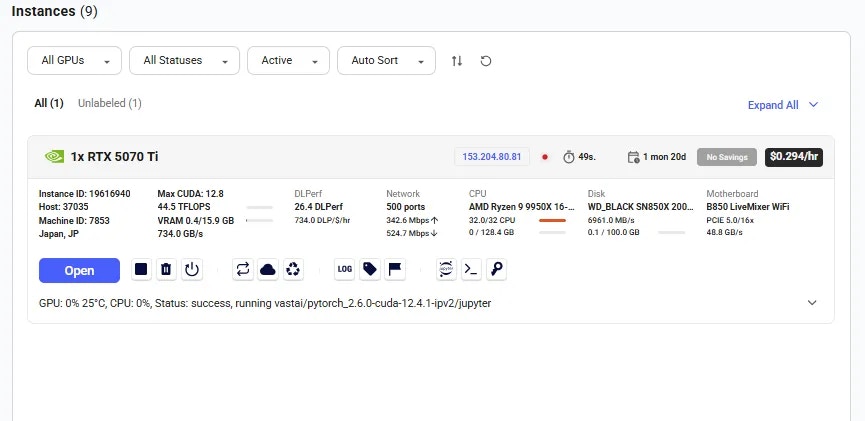 Each instance card displays comprehensive information about your rental:
### Main Status Button
Each instance card displays comprehensive information about your rental:
### Main Status Button
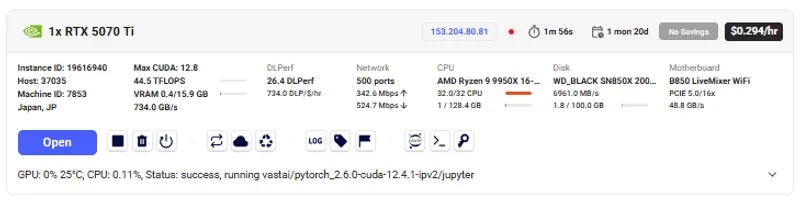 The main button (left side of card) shows instance status and provides quick access:
**Status Indicators:**
* **Open**: Instance loaded, click to access via browser
* **Connect**: Instance loaded, click for SSH info
* **Inactive**: Stopped but data preserved (can restart if GPU available)
* **Offline**: Machine disconnected from Vast servers
* **Scheduling**: Attempting to restart (waiting for GPU availability)
* **Creating**: Vast initiating instance creation
* **Loading**: Downloading Docker image
* **Connecting**: Docker running but connection not verified
### Instance Information
The main button (left side of card) shows instance status and provides quick access:
**Status Indicators:**
* **Open**: Instance loaded, click to access via browser
* **Connect**: Instance loaded, click for SSH info
* **Inactive**: Stopped but data preserved (can restart if GPU available)
* **Offline**: Machine disconnected from Vast servers
* **Scheduling**: Attempting to restart (waiting for GPU availability)
* **Creating**: Vast initiating instance creation
* **Loading**: Downloading Docker image
* **Connecting**: Docker running but connection not verified
### Instance Information
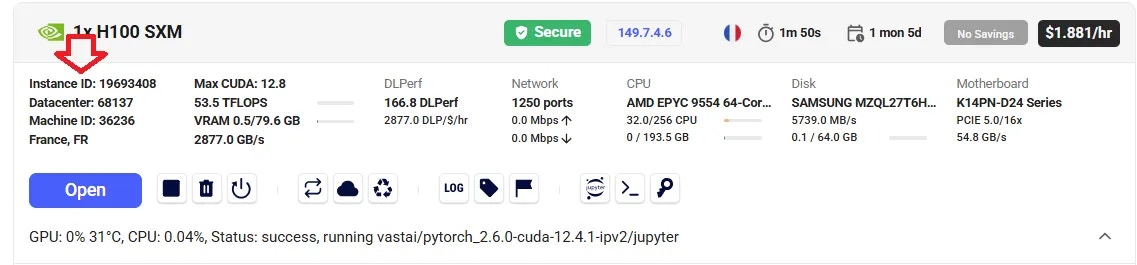 **ID Information:**
* Instance ID - Unique identifier for your instance
* Host/Datacenter ID - Provider identification
* Machine ID - Physical machine identifier
**Hardware Details:**
**ID Information:**
* Instance ID - Unique identifier for your instance
* Host/Datacenter ID - Provider identification
* Machine ID - Physical machine identifier
**Hardware Details:**
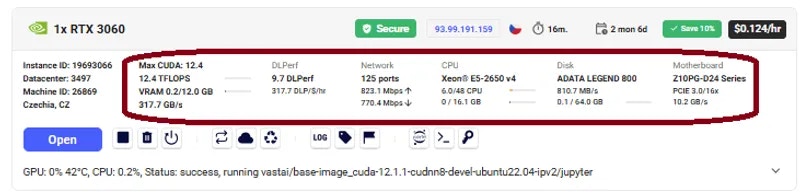 * GPU model and count
* CPU and RAM allocation
* Storage capacity
* Network configuration
**Contract Info:**
* GPU model and count
* CPU and RAM allocation
* Storage capacity
* Network configuration
**Contract Info:**
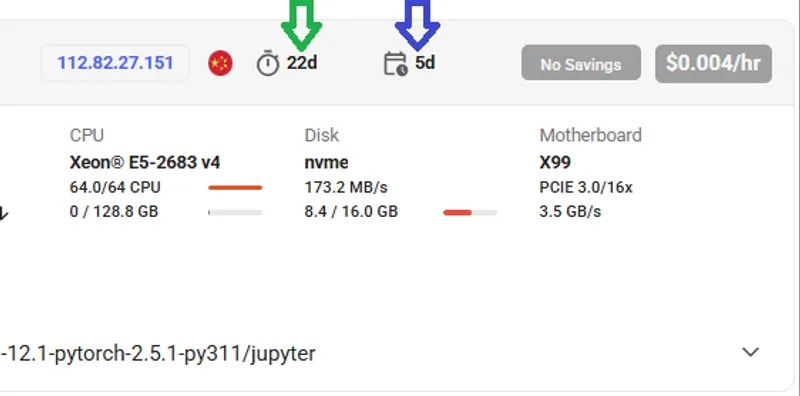 * Instance age (time since creation)
* Rental end date
* Remaining duration
## Instance Operations
### Starting, Stopping, and Destroying
* Instance age (time since creation)
* Rental end date
* Remaining duration
## Instance Operations
### Starting, Stopping, and Destroying
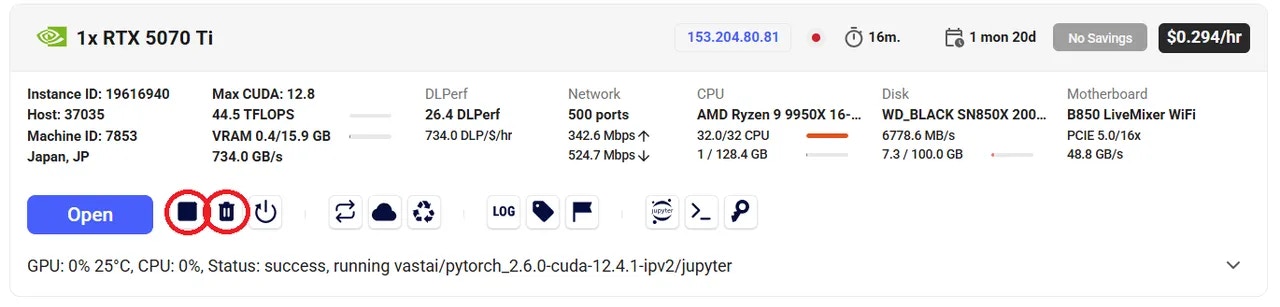 * **Stop Button** (square icon): Pauses instance, preserves data, continues storage charges
* **Destroy Button** (trash icon): Permanently deletes instance and all data
* **Restart Button** (play icon): Appears when stopped, attempts to reclaim GPU
**Important:** Stopped instances continue incurring storage charges. Destroy instances when no longer needed to avoid ongoing costs.
### Restart Behavior
* **Stop Button** (square icon): Pauses instance, preserves data, continues storage charges
* **Destroy Button** (trash icon): Permanently deletes instance and all data
* **Restart Button** (play icon): Appears when stopped, attempts to reclaim GPU
**Important:** Stopped instances continue incurring storage charges. Destroy instances when no longer needed to avoid ongoing costs.
### Restart Behavior
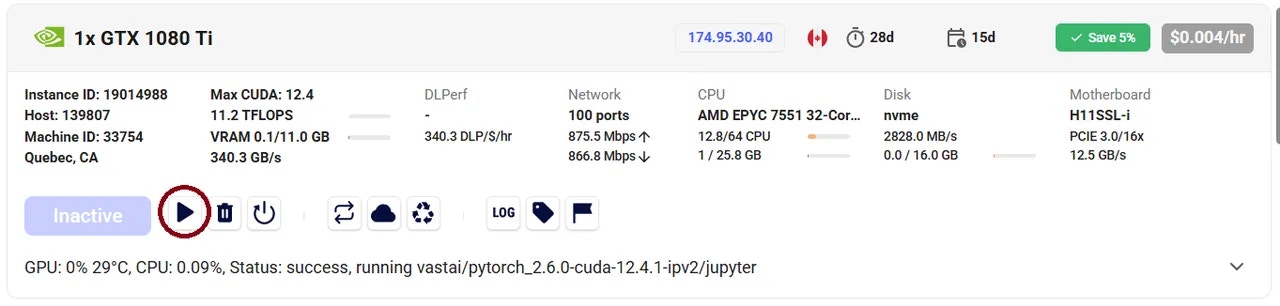 When restarting a stopped instance:
1. Instance enters `SCHEDULING` status
2. Waits for GPU availability
3. If stuck >30 seconds, GPU likely rented by another user
4. Cancel scheduling by clicking stop again
5. Consider creating new instance if GPU unavailable
### Additional Controls
When restarting a stopped instance:
1. Instance enters `SCHEDULING` status
2. Waits for GPU availability
3. If stuck >30 seconds, GPU likely rented by another user
4. Cancel scheduling by clicking stop again
5. Consider creating new instance if GPU unavailable
### Additional Controls
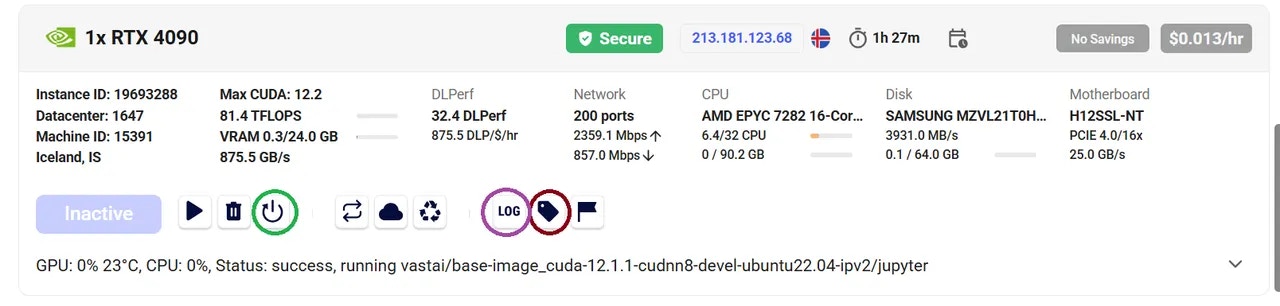 * **Label Instance** - Add custom name for identification
* **Reboot Instance** - Restart without data loss
* **View Logs** - Access Docker container logs
## Data Management
* **Label Instance** - Add custom name for identification
* **Reboot Instance** - Restart without data loss
* **View Logs** - Access Docker container logs
## Data Management
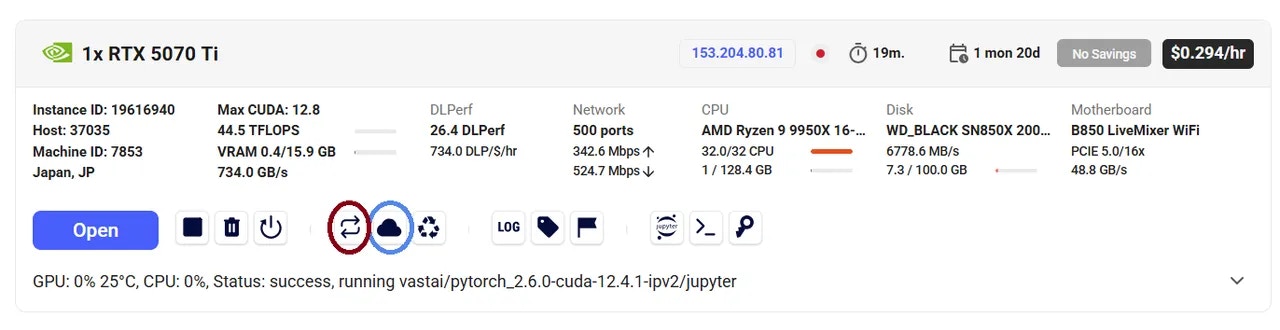 * **Copy Data** - Transfer between your instances (see [Data Movement](/guides/instances/storage/data-movement))
* **Cloud Sync** - Sync with cloud providers (see [Cloud Sync](/guides/instances/storage/cloud-sync))
Use Cloud Sync only on trusted datacenters (indicated by **Secure** icon).
## Connection Quick Reference
For detailed connection instructions, see [Connect to Instances](/guides/instances/connect/overview):
* **SSH button** - Shows SSH command
* **Open button** - Launches web UI
* **IP/Ports button** - Network information
## Troubleshooting Instance States
### Instance Stuck on "Loading"
* Normal for 30 seconds with cached images
* Can take hours with slow internet/large images
* Not charged during loading
* Try machines with faster internet
### Instance Stuck on "Scheduling"
When stopped instances try to restart:
* GPU may be reassigned to other users
* High-priority jobs block restart
* May wait indefinitely for GPU availability
* Consider copying data to new instance
### Instance Stuck on "Connecting"
* Port configuration may be broken
* Report the machine
* Try different machine
### Machine Shows "Offline"
* Lost connection to Vast servers
* Often internet/power issues
* Host notified automatically
* May be maintenance or unforeseen problems
## Important Considerations
### Data Persistence
* **Stopped instances**: Data preserved, storage charges continue
* **Destroyed instances**: All data permanently deleted
* **Before destroying**: Copy important data or sync to cloud
### Contract Expiration
Expired instances may be deleted 48 hours after expiration. Expired instances cannot restart. Retrieve your data promptly.
### Security
* Hosts can technically access files on their machines
* For sensitive data, use verified datacenters
* Implement encryption for critical data
### IP Addresses
Some instances have dynamic IPs that may change. Check IP type via the IP button on instance card. For static IPs, filter by "Static IP Address" when searching.
## Common Questions
### Can I run Docker inside my instance?
No, instances are already Docker containers. Docker-in-Docker is not supported.
### Do I pay for "Loading" instances?
No, you're not charged while instances show "Loading" status.
### Can I view past instances?
No, destroyed instances cannot be viewed. Recent template history is preserved for configuration reference.
### Why is my machine location showing only ", US"?
This means geolocation couldn't determine the state. It's not an indication of reliability.
### Can I run VMs or bare metal?
Currently only Docker containers are supported. VM and bare-metal options planned for future.
## Next Steps
Transfer files to and from your instances
Save up to 50% with long-term commitments
Access web services running in your instances
* **Copy Data** - Transfer between your instances (see [Data Movement](/guides/instances/storage/data-movement))
* **Cloud Sync** - Sync with cloud providers (see [Cloud Sync](/guides/instances/storage/cloud-sync))
Use Cloud Sync only on trusted datacenters (indicated by **Secure** icon).
## Connection Quick Reference
For detailed connection instructions, see [Connect to Instances](/guides/instances/connect/overview):
* **SSH button** - Shows SSH command
* **Open button** - Launches web UI
* **IP/Ports button** - Network information
## Troubleshooting Instance States
### Instance Stuck on "Loading"
* Normal for 30 seconds with cached images
* Can take hours with slow internet/large images
* Not charged during loading
* Try machines with faster internet
### Instance Stuck on "Scheduling"
When stopped instances try to restart:
* GPU may be reassigned to other users
* High-priority jobs block restart
* May wait indefinitely for GPU availability
* Consider copying data to new instance
### Instance Stuck on "Connecting"
* Port configuration may be broken
* Report the machine
* Try different machine
### Machine Shows "Offline"
* Lost connection to Vast servers
* Often internet/power issues
* Host notified automatically
* May be maintenance or unforeseen problems
## Important Considerations
### Data Persistence
* **Stopped instances**: Data preserved, storage charges continue
* **Destroyed instances**: All data permanently deleted
* **Before destroying**: Copy important data or sync to cloud
### Contract Expiration
Expired instances may be deleted 48 hours after expiration. Expired instances cannot restart. Retrieve your data promptly.
### Security
* Hosts can technically access files on their machines
* For sensitive data, use verified datacenters
* Implement encryption for critical data
### IP Addresses
Some instances have dynamic IPs that may change. Check IP type via the IP button on instance card. For static IPs, filter by "Static IP Address" when searching.
## Common Questions
### Can I run Docker inside my instance?
No, instances are already Docker containers. Docker-in-Docker is not supported.
### Do I pay for "Loading" instances?
No, you're not charged while instances show "Loading" status.
### Can I view past instances?
No, destroyed instances cannot be viewed. Recent template history is preserved for configuration reference.
### Why is my machine location showing only ", US"?
This means geolocation couldn't determine the state. It's not an indication of reliability.
### Can I run VMs or bare metal?
Currently only Docker containers are supported. VM and bare-metal options planned for future.
## Next Steps
Transfer files to and from your instances
Save up to 50% with long-term commitments
Access web services running in your instances