> ## Documentation Index
> Fetch the complete documentation index at: https://docs.vast.ai/llms.txt
> Use this file to discover all available pages before exploring further.
# Account Settings
On this page you can view and edit important information about your client account.
# Page Walkthrough
## Enable Dark Mode
Turning the switch on and off will enable and disable dark mode.

You can also toggle this setting in the navigation bar with the moon and sun icons.

 ## Account Security
In the Account Security section, you can set up two-factor authentication, resend a verification email, change your email, or reset your password.

### Two-Factor Authentication
You can set up two-factor authentication (2FA) for your Vast account. This can be used to help protect your account from unauthorized access. You’ll be required to enter a security code each time you sign in.

### Resend Verification Email
Select the "Resend" button to receive a new verification email in your inbox.

### Change Email
You can view the current email connected to your account and change your email at any time by pressing the 'Change' button.
When you change your email using this feature you will not be required to re-verify your email address. All emails that would normally be sent to the old e-mail will be now be directed towards your new email.
### Reset Password
You can change your password by selecting the "Reset" button, and you will get a link to reset your password via email.

## Referral Link
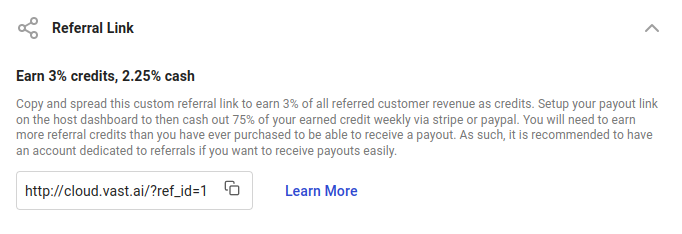
You can access your referral link in the Referral Link section of the Settings page.

When users create an account through your referral link and use Vast services, you'll earn credits and receive payouts for your referrals.
## Environment Variables
You can add, edit, and delete the environment variables stored on your account in the Environment Variables section.

When adding individually, input the env key into the key field and value into the value field, then select the "+" button to save your environment variable.
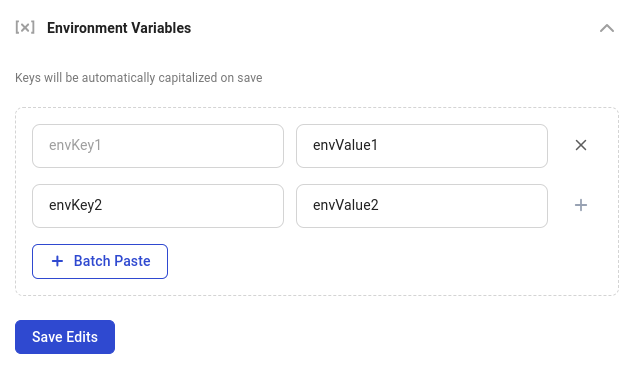
To add multiple at once, select the "Batch Paste" option and paste your environment variables into that input, according to the format below.
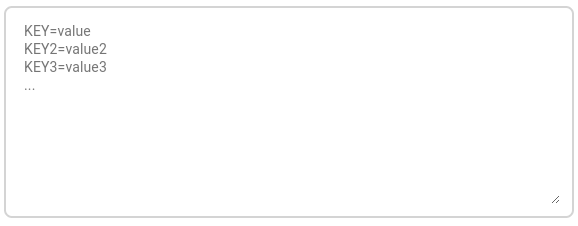
Within the batch paste mode, you can save your changes by selecting the "Save" button or erase them with the "Cancel" button.
When you are finished editing your environment variables, make sure you select the "Save Edits" button to save all of your changes.
## Notification Settings
You can subscribe or unsubscribe from our email newsletter by selecting or unselecting this checkbox in the Notification Settings section.
## Account Security
In the Account Security section, you can set up two-factor authentication, resend a verification email, change your email, or reset your password.

### Two-Factor Authentication
You can set up two-factor authentication (2FA) for your Vast account. This can be used to help protect your account from unauthorized access. You’ll be required to enter a security code each time you sign in.

### Resend Verification Email
Select the "Resend" button to receive a new verification email in your inbox.

### Change Email
You can view the current email connected to your account and change your email at any time by pressing the 'Change' button.

When you change your email using this feature you will not be required to re-verify your email address. All emails that would normally be sent to the old e-mail will be now be directed towards your new email.
### Reset Password
You can change your password by selecting the "Reset" button, and you will get a link to reset your password via email.

## Referral Link
You can access your referral link in the Referral Link section of the Settings page.

When users create an account through your referral link and use Vast services, you'll earn credits and receive payouts for your referrals.

## Environment Variables
You can add, edit, and delete the environment variables stored on your account in the Environment Variables section.

When adding individually, input the env key into the key field and value into the value field, then select the "+" button to save your environment variable.

To add multiple at once, select the "Batch Paste" option and paste your environment variables into that input, according to the format below.

Within the batch paste mode, you can save your changes by selecting the "Save" button or erase them with the "Cancel" button.
When you are finished editing your environment variables, make sure you select the "Save Edits" button to save all of your changes.
## Notification Settings
You can subscribe or unsubscribe from our email newsletter by selecting or unselecting this checkbox in the Notification Settings section.
 ## Cloud Connection
In this section, you can integrate and connect with cloud providers such as Amazon S3, Backblaze, and Dropbox.

This integration process is very straightforward. If you need assistance in setting up these integrations you can read our guides [here](/guides/instances/cloud-sync).
One of the benefits of these integrations is the ability to sync data even while instances are inactive.
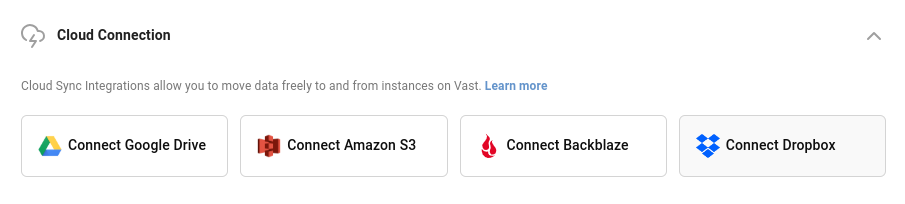
You can access this feature via the 'Cloud Copy' button on the Instances page.
## Invoice Information
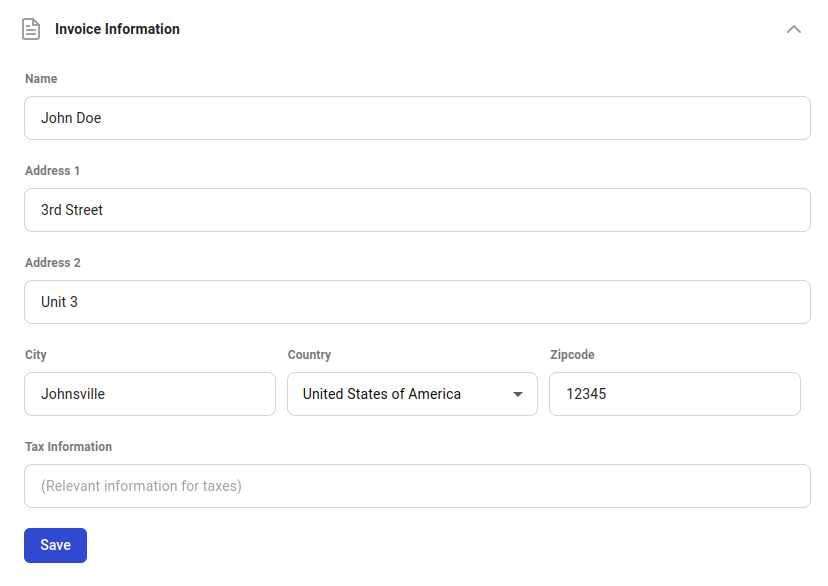
In the Invoice Information section, you can set personal information for your invoices.

Click into any input field to edit it, and select the "Save" button to save your changes.
## Common Questions
### Can I delete my account?
You can now delete your Vast.ai account. **Before deleting:**
* Remove all machines if you are a host.
* `vastai delete machine machine_id`
* Destroy / delete all instances and volumes.
* **Teams:** If you **own** a team, it will be deleted, [transfer ownership](/guides/teams/managing-teams#transferring-team-ownership) if needed. If you're **a member** of a team, you'll be removed from it.
After these steps, contact us via the **Support Chat** to complete deletion.
## Cloud Connection
In this section, you can integrate and connect with cloud providers such as Amazon S3, Backblaze, and Dropbox.

This integration process is very straightforward. If you need assistance in setting up these integrations you can read our guides [here](/guides/instances/cloud-sync).
One of the benefits of these integrations is the ability to sync data even while instances are inactive.

You can access this feature via the 'Cloud Copy' button on the Instances page.
## Invoice Information
In the Invoice Information section, you can set personal information for your invoices.

Click into any input field to edit it, and select the "Save" button to save your changes.

## Common Questions
### Can I delete my account?
You can now delete your Vast.ai account. **Before deleting:**
* Remove all machines if you are a host.
* `vastai delete machine machine_id`
* Destroy / delete all instances and volumes.
* **Teams:** If you **own** a team, it will be deleted, [transfer ownership](/guides/teams/managing-teams#transferring-team-ownership) if needed. If you're **a member** of a team, you'll be removed from it.
After these steps, contact us via the **Support Chat** to complete deletion.
 ### Is there a spend rate limit on my account?
There is a spend rate limit for new users. Make sure you have verified your email; otherwise, your limit is near zero. Once you have verified your email, your spend rate limit increases automatically over time.
If you are an enterprise user, email us at [contact@vast.ai](mailto:contact@vast.ai) to request a larger rate limit increase. Users paying with crypto are also eligible for rate increases.
### Is there a spend rate limit on my account?
There is a spend rate limit for new users. Make sure you have verified your email; otherwise, your limit is near zero. Once you have verified your email, your spend rate limit increases automatically over time.
If you are an enterprise user, email us at [contact@vast.ai](mailto:contact@vast.ai) to request a larger rate limit increase. Users paying with crypto are also eligible for rate increases.