> ## Documentation Index
> Fetch the complete documentation index at: https://docs.vast.ai/llms.txt
> Use this file to discover all available pages before exploring further.
# Notifications
> Choose which Vast.ai account, billing, and instance events reach you by email or through webhooks.
Notifications let you decide which Vast.ai events you want to be told about, and where those messages go. A renter may only need low-balance and instance lifecycle alerts by email. An automated platform can subscribe to the same events through webhooks and route them into its own incident, billing, or orchestration system.
The notification system is shared across the web console and the API. The console gives you a settings page for choosing events and destinations. The API gives developers access to the same notification types, preferences, and webhook tools.
This page covers renter notifications. If you also provide machines on Vast.ai, see [Host Notifications](/host/notifications) for host machine, verification, and maintenance events.
## Where to Find Notification Settings
Open [Account Settings](https://cloud.vast.ai/account/) and go to **Notification Settings**.
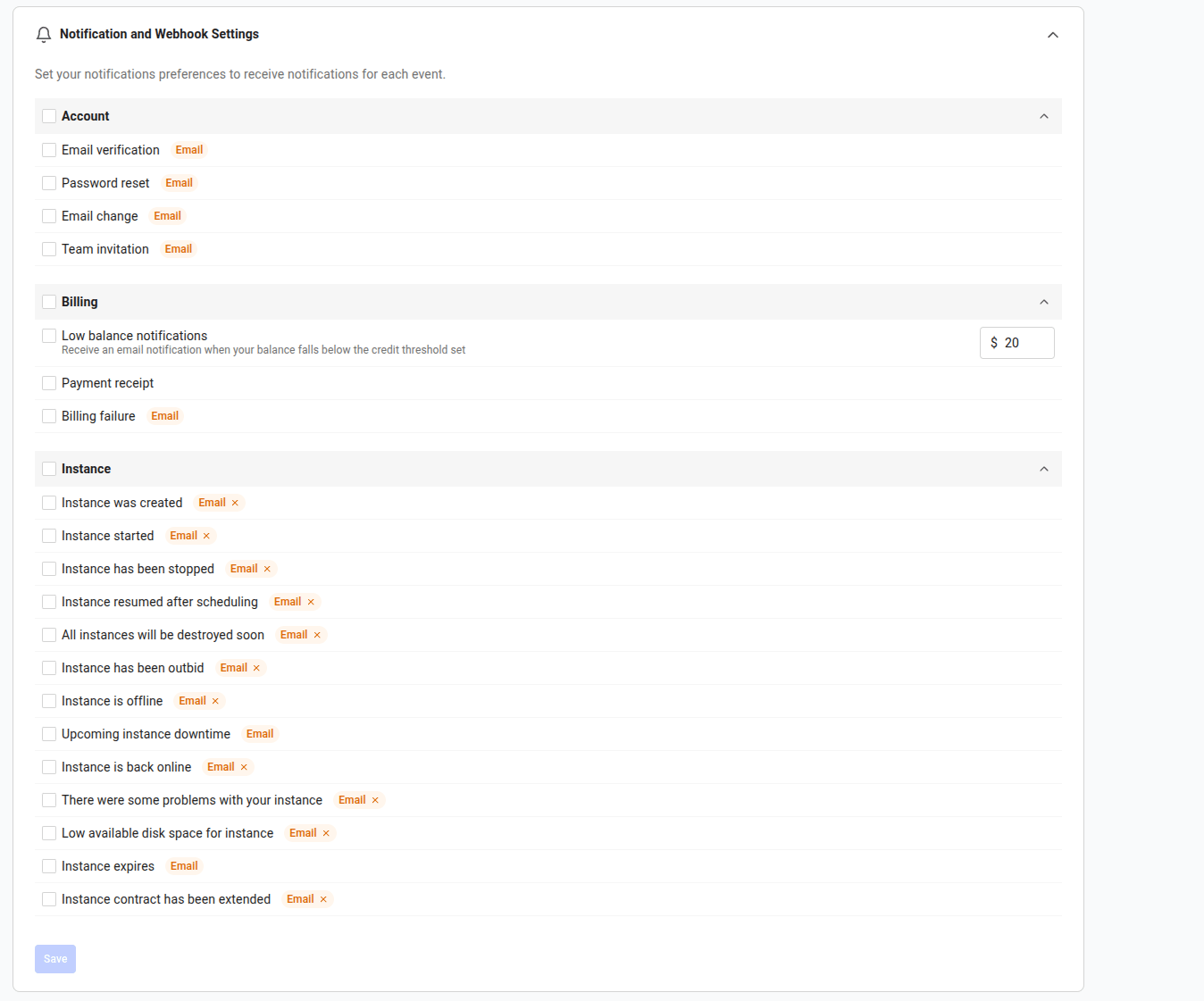 The page groups events by the part of Vast.ai they affect:
| Group | What it covers |
| ------------ | -------------------------------------------------------------------------------------------------------------------------------- |
| **Account** | Email verification, password resets, email changes, team invitations, and similar account events |
| **Billing** | Low balance, payment receipts, billing failures, and other payment events |
| **Instance** | Instance creation, startup, stops, resumes, outbid events, offline/online state, contract end dates, downtime, and disk warnings |
Some events are only shown when they apply to your account. For example, team-invitation events only appear if you belong to a team.
## How Delivery Works
Each notification type can be delivered over one or more channels:
| Channel | Use it for |
| ------------ | --------------------------------------------------------- |
| **Email** | Human-readable messages for events you want in your inbox |
| **Webhooks** | Machine-readable HTTP events for your own systems |
Some emails are mandatory because they are tied to account access, billing protection, or imminent service disruption. Mandatory email notifications cannot be fully disabled from the settings page.
Email and webhook preferences are set per notification type.
## Update Notifications in the Console
1. Open **Account Settings**.
2. Go to **Notification Settings**.
3. Review each Account, Billing, and Instance section.
4. Turn off email for any optional event you do not want in your inbox.
5. For low-balance notifications, set the credit threshold that should trigger the warning.
6. Select events that should be sent to a webhook, then create or edit the webhook destination.
7. Click **Save**.
Set your low-balance threshold below your autobilling threshold. That gives you an early warning if an automatic charge fails before your balance reaches zero.
## Webhooks
Webhooks are part of the notification system. They use the same event catalog and preferences as email notifications, but deliver events to an HTTPS endpoint that you operate.
Use webhooks when you want to:
* Trigger cleanup or orchestration when an instance changes state.
* Mirror billing or account events into your own tools.
* Build an audit trail outside the Vast console.
See [Notification Webhooks](/guides/reference/notification-webhooks) for setup, payloads, signing, retries, and API examples.
## Notification Type Keys
Notification types are identified by a `key` with a context prefix. Renter events use the `client:` prefix, such as `client:low_credit` or `client:outbid`.
Use the full `key` when subscribing webhooks or updating preferences. Because a similar event can exist for both renters and hosts, the full key avoids ambiguity. For the complete list of types, display names, and default channel settings, call [`GET /notification-types/`](/api-reference/notifications/list-notification-types).
## Programmatic Access
Building your own notification settings UI or automation? The full set of notification, preference, and webhook endpoints is documented in the [Notifications API](/api-reference/notifications/list-notification-types).
## Good Defaults
Start with this setup:
| If you are... | Recommended setup |
| ------------------------------------- | ------------------------------------------------------------------------------------ |
| Renting GPU instances manually | Keep low balance, outbid, downtime, and contract end date emails enabled |
| Running automated workloads | Add a webhook for instance lifecycle, downtime, outbid, and billing events |
| Building your own platform on Vast.ai | Use notification type keys, verify webhook signatures, and deduplicate by `event_id` |
Review the settings periodically, especially after enabling autobilling or connecting a new automation workflow.
The page groups events by the part of Vast.ai they affect:
| Group | What it covers |
| ------------ | -------------------------------------------------------------------------------------------------------------------------------- |
| **Account** | Email verification, password resets, email changes, team invitations, and similar account events |
| **Billing** | Low balance, payment receipts, billing failures, and other payment events |
| **Instance** | Instance creation, startup, stops, resumes, outbid events, offline/online state, contract end dates, downtime, and disk warnings |
Some events are only shown when they apply to your account. For example, team-invitation events only appear if you belong to a team.
## How Delivery Works
Each notification type can be delivered over one or more channels:
| Channel | Use it for |
| ------------ | --------------------------------------------------------- |
| **Email** | Human-readable messages for events you want in your inbox |
| **Webhooks** | Machine-readable HTTP events for your own systems |
Some emails are mandatory because they are tied to account access, billing protection, or imminent service disruption. Mandatory email notifications cannot be fully disabled from the settings page.
Email and webhook preferences are set per notification type.
## Update Notifications in the Console
1. Open **Account Settings**.
2. Go to **Notification Settings**.
3. Review each Account, Billing, and Instance section.
4. Turn off email for any optional event you do not want in your inbox.
5. For low-balance notifications, set the credit threshold that should trigger the warning.
6. Select events that should be sent to a webhook, then create or edit the webhook destination.
7. Click **Save**.
Set your low-balance threshold below your autobilling threshold. That gives you an early warning if an automatic charge fails before your balance reaches zero.
## Webhooks
Webhooks are part of the notification system. They use the same event catalog and preferences as email notifications, but deliver events to an HTTPS endpoint that you operate.
Use webhooks when you want to:
* Trigger cleanup or orchestration when an instance changes state.
* Mirror billing or account events into your own tools.
* Build an audit trail outside the Vast console.
See [Notification Webhooks](/guides/reference/notification-webhooks) for setup, payloads, signing, retries, and API examples.
## Notification Type Keys
Notification types are identified by a `key` with a context prefix. Renter events use the `client:` prefix, such as `client:low_credit` or `client:outbid`.
Use the full `key` when subscribing webhooks or updating preferences. Because a similar event can exist for both renters and hosts, the full key avoids ambiguity. For the complete list of types, display names, and default channel settings, call [`GET /notification-types/`](/api-reference/notifications/list-notification-types).
## Programmatic Access
Building your own notification settings UI or automation? The full set of notification, preference, and webhook endpoints is documented in the [Notifications API](/api-reference/notifications/list-notification-types).
## Good Defaults
Start with this setup:
| If you are... | Recommended setup |
| ------------------------------------- | ------------------------------------------------------------------------------------ |
| Renting GPU instances manually | Keep low balance, outbid, downtime, and contract end date emails enabled |
| Running automated workloads | Add a webhook for instance lifecycle, downtime, outbid, and billing events |
| Building your own platform on Vast.ai | Use notification type keys, verify webhook signatures, and deduplicate by `event_id` |
Review the settings periodically, especially after enabling autobilling or connecting a new automation workflow.