> ## Documentation Index
> Fetch the complete documentation index at: https://docs.vast.ai/llms.txt
> Use this file to discover all available pages before exploring further.
# Referral Program
Turn your audience into earnings! Share your unique Vast.ai referral link (or a public template link), and when someone creates a **new client account** and buys credits, you get **3%** of everything they spend, for the **lifetime** of their account.
Better yet, you can cash out **75% of those referral credits** via **Stripe Connect, PayPal, or Wise**.
In order to receive payouts for referrals you MUST create a new account. You are unlikely to be able to receive payouts to any bank account outside Vast if the account you are using for referrals has ever rented instances or hosted machines
## How It Works
1. **Share Your Link** - Post it on your site, in videos, blogs, or wherever your audience is.
2. **They Join & Buy Credits** - New users sign up through your link and purchase credits.
3. **You Earn** - Get 3% of their lifetime spend as referral credits.
4. **Cash Out or Spend** - Use credits on Vast, or withdraw up to 75% as cash.
If someone spends \$1,000 over time, you get \$30 in referral credits, forever.
## Payout Rules, Important!
To **receive cash payouts** (outside of Vast), you **must** use a **dedicated referral account**:
* If you’ve **ever rented instances or hosted machines** on an account, you **cannot** cash out until your referral earnings exceed your lifetime instance spend.
* If you just want credits to rent Vast instances, you can use your main account.
**Why a separate account?**
It keeps your referral earnings clear and makes sure you’re payout-eligible.
**Example:**
* You’ve earned \$300 in referral credits.
* Lifetime charges on your account: \$855.
* Since \$300 \< \$855, you can't cash out until referral earnings exceed \$855.
## Getting Your Referral Link
1. Create a new account for referrals.
2. Go to [**Settings**](https://cloud.vast.ai/account/) → **Referral Link**.
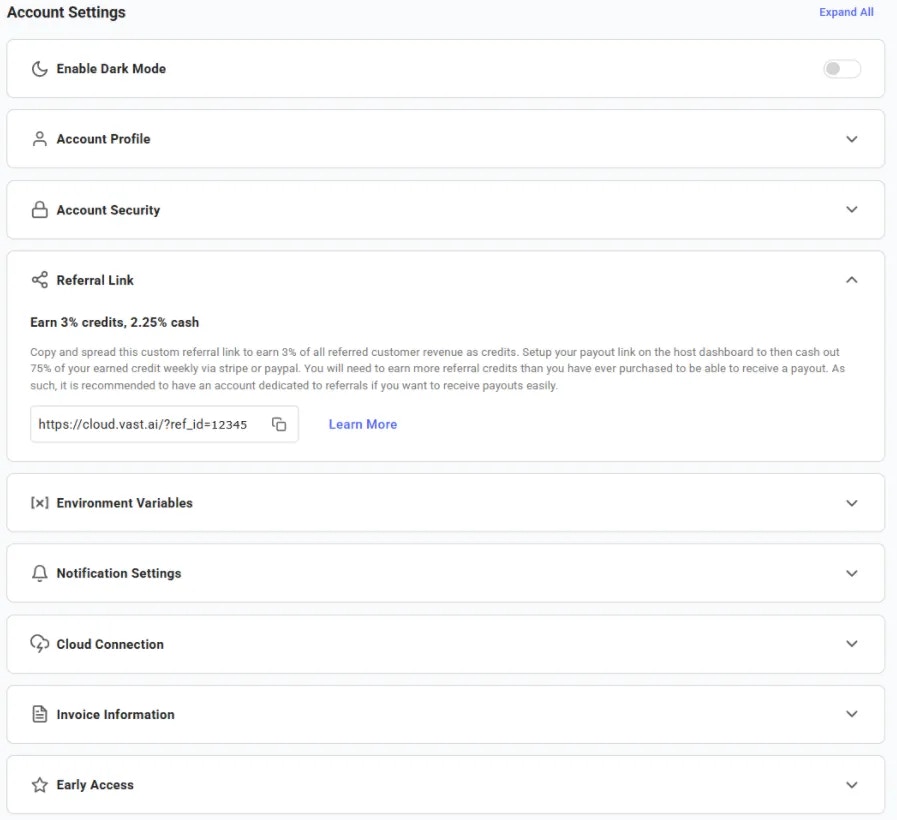 3. Copy the link.
4. Share it!
**Note:** You can’t refer yourself or any account connected to you, those won’t earn rewards.
## Using Templates for Referrals
Want to make referrals even easier? Use [**Templates page**](https://cloud.vast.ai/templates/) to create your template.
A template can pre-load:
* A Docker image
* Launch mode(s)
* Onstart script
* Environment variables
**Example:** The Stable Diffusion template loads the image, sets up Automatic1111 WebUI, starts Jupyter, and preps the environment, ready to go.
Create [your own template](/guides/templates/creating-templates) for a use case, set it to **public**, then share its **template referral link.** The link will have this format:
**Note:** You can’t refer yourself or any account connected to you, those won’t earn rewards.
Your audience clicks → Vast loads with your settings → they sign up → you earn.
**Where to use it:** GitHub repos, videos, blog posts, anywhere your audience needs a “click and run” setup.
## Bigger Opportunities
For large-scale referral or marketing collaborations, reach us at **[support@vast.ai](mailto:support@vast.ai)**.
## Common Questions
### Where can I find referral link for my template?
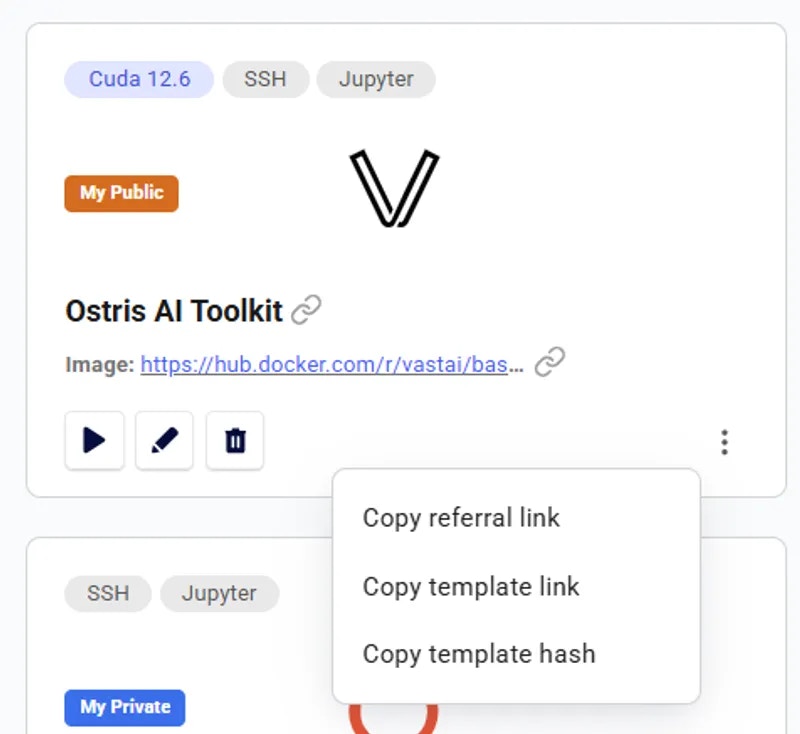
Open your **Templates **page -> My Templates. On each template card, click the **three-dot menu **and select **Copy Referral Link**. This gives you a ready-to-share link that includes your referral ID and the template ID, perfect for sharing with your audience.
3. Copy the link.
4. Share it!
**Note:** You can’t refer yourself or any account connected to you, those won’t earn rewards.
## Using Templates for Referrals
Want to make referrals even easier? Use [**Templates page**](https://cloud.vast.ai/templates/) to create your template.
A template can pre-load:
* A Docker image
* Launch mode(s)
* Onstart script
* Environment variables
**Example:** The Stable Diffusion template loads the image, sets up Automatic1111 WebUI, starts Jupyter, and preps the environment, ready to go.
Create [your own template](/guides/templates/creating-templates) for a use case, set it to **public**, then share its **template referral link.** The link will have this format:
**Note:** You can’t refer yourself or any account connected to you, those won’t earn rewards.
Your audience clicks → Vast loads with your settings → they sign up → you earn.
**Where to use it:** GitHub repos, videos, blog posts, anywhere your audience needs a “click and run” setup.
## Bigger Opportunities
For large-scale referral or marketing collaborations, reach us at **[support@vast.ai](mailto:support@vast.ai)**.
## Common Questions
### Where can I find referral link for my template?
Open your **Templates **page -> My Templates. On each template card, click the **three-dot menu **and select **Copy Referral Link**. This gives you a ready-to-share link that includes your referral ID and the template ID, perfect for sharing with your audience.