> ## Documentation Index
> Fetch the complete documentation index at: https://docs.vast.ai/llms.txt
> Use this file to discover all available pages before exploring further.
# Advanced Setup
## Overview
This guide covers advanced customization techniques available on the Vast.ai platform. These features allow you to extend and enhance your templates beyond basic configuration.
For a complete reference of all template settings, see [Template Settings](/guides/templates/template-settings).
For a step-by-step tutorial on creating your first template, see [Creating Templates](/guides/templates/creating-templates).
## Customization Options
There are two main ways to customize templates on Vast.ai:
1. **Runtime customization with PROVISIONING\_SCRIPT** - Add a setup script that runs when the instance starts
* Works with any Docker image
* Simplest approach - no Docker build needed
* Perfect for installing packages, downloading models, configuring services
2. **Build custom Docker images** - Create your own Dockerfile with everything pre-installed
* Can start FROM Vast base images for built-in security features
* Or FROM any other base image
* Full control, faster instance startup
* Best for complex setups or frequently reused configurations
## PROVISIONING\_SCRIPT
Vast.ai templates support running a remote script on start to help configure the instance and download models and extensions that may not already be available in the Docker image.
This is the simplest way to customize a template - you start with one of our recommended templates (like `vastai/base-image` or `vastai/pytorch`) and add custom setup via a provisioning script.
### How to use
1. Go to the [Templates tab](https://cloud.vast.ai/templates/) in Vast.ai interface
2. Search for "base-image" or "Pytorch" depending on your needs:
* `vastai/base-image` is a general purpose image
* `vastai/pytorch` is a base image for working with PyTorch-based applications on Vast
3. Click "Edit" on your chosen template
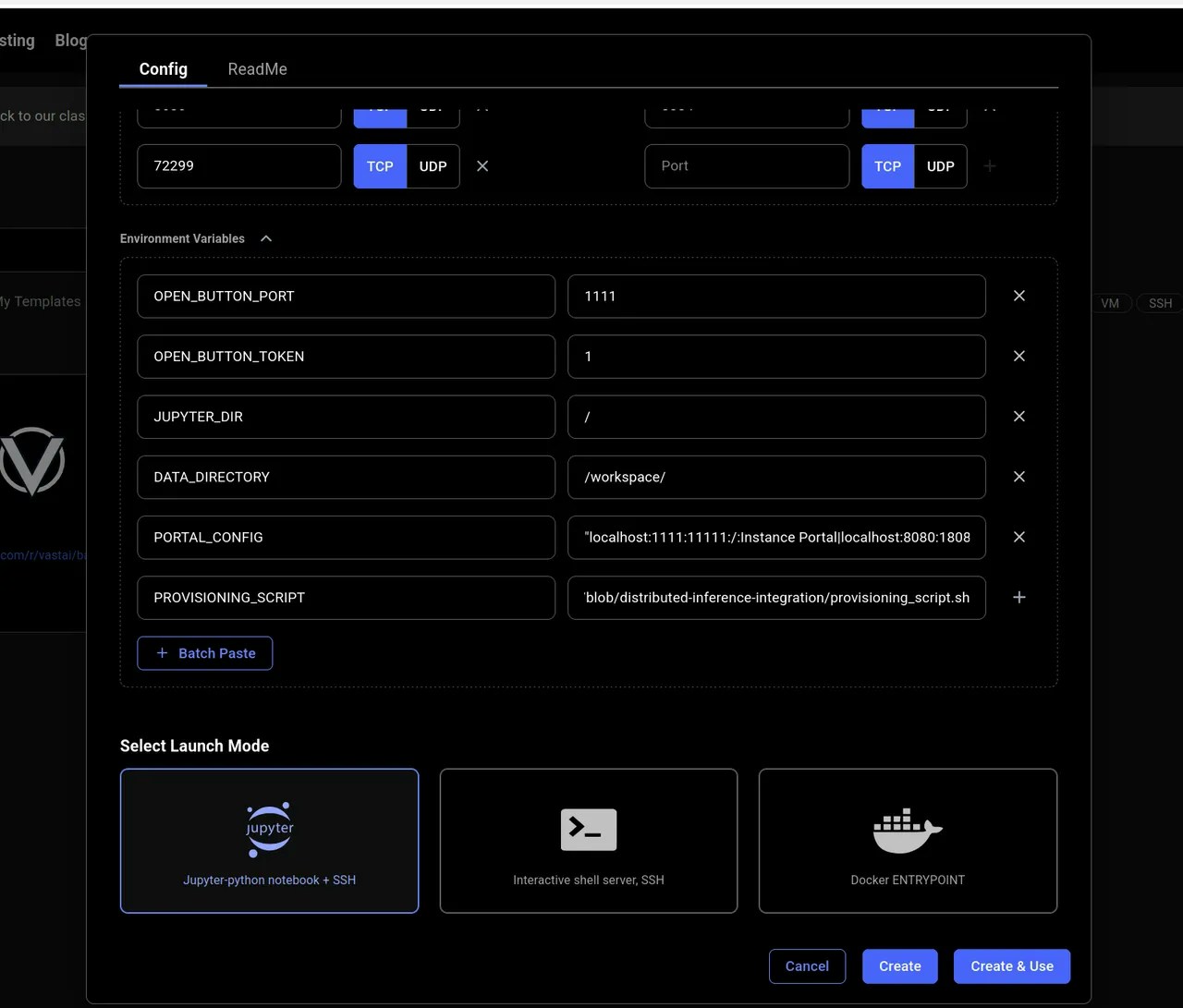
4. Add the PROVISIONING\_SCRIPT environment variable:
* In the Environment Variables section, add a new variable named "PROVISIONING\_SCRIPT"
* The value should be a URL pointing to a shell script (from GitHub, Gist, etc.)
```curl Example URL theme={null}
https://raw.githubusercontent.com/karthik-vast-ai/vast-cli/distributed-inference-integration/provisioning_script.sh
```
5. Make sure to click "+" to add the environment variable
6. Click Create and Use
 ### Example PROVISIONING\_SCRIPT
```bash Bash theme={null}
#!/bin/bash
#
cd /workspace/
# Cause the script to exit on failure.
set -eo pipefail
# Activate the main virtual environment
. /venv/main/bin/activate
# Install your packages
pip install your-packages
# Download some useful files
wget -P "${WORKSPACE}/" https://example.org/my-application.tar.gz
tar xvf ${WORKSPACE}/my-application.tar.gz"
# Set up any additional services
echo "my-supervisor-config" > /etc/supervisor/conf.d/my-application.conf
echo "my-supervisor-wrapper" > /opt/supervisor-scripts/my-application.sh
chmod +x /opt/supervisor-scripts/my-application.sh
# Reconfigure the instance portal
rm -f /etc/portal.yaml
export PORTAL_CONFIG="localhost:1111:11111:/:Instance Portal|localhost:1234:11234:/:My Application"
# Reload Supervisor
supervisorctl reload
```
This script will run on first boot to set up your environment. All installations should go to /workspace/ for proper persistence.
### Configuring Application Access with PORTAL\_CONFIG
The base-image template includes PORTAL\_CONFIG for secure application access management. This environment variable controls how applications are exposed and accessed.
```bash PORTAL_CONFIG structure theme={null}
hostname:external_port:local_port:url_path:Application Name|hostname:external_port:local_port:url_path:Application Name
```
The structure of this variable is:
* Each application is separated by the `|` character
* Each application parameter is separated by the `:` character
* Each application must specify `hostname:external_port:local_port:url_path:Application Name`
Example:
```bash Bash theme={null}
"localhost:8002:18002:/hello:MyApp|localhost:1111:11111:/:Instance Portal|localhost:8080:18080:/:Jupyter|localhost:8080:8080:/terminals/1:Jupyter Terminal|localhost:8384:18384:/:Syncthing|localhost:6006:16006:/:Tensorboard"
```
The hostname in Docker instances will always be `localhost`
Where the internal port and local port are not equal then Caddy will be configured to listen on `0.0.0.0:external_port` acting as a reverse proxy for `hostname:local_port`
If the `external_port` and `local_port` are equal then Caddy will not act as a proxy but the Instance Portal UI will still create links. This is useful because it allows us to create links to Jupyter which is not controlled by Supervisor in Jupyter Launch mode.
`url_path` will be appended to the instance address and is generally set to `/` but can be used to create application deep links.
The `caddy_manager` script will write an equivalent config file at `/etc/portal.yaml` on boot if it does not already exist. This file can be edited in a running instance.
Important: When defining multiple links to a single application, only the first should have non equal ports - We cannot proxy one application multiple times.
Note: Instance Portal UI is **not** required and its own config declaration can be removed from `PORTAL_CONFIG`. This will not affect the authentication system.
## Building Custom Docker Images
If you want to create your own custom Docker image, you can optionally start FROM one of our [Vast.ai base images](https://hub.docker.com/r/vastai/base-image/tags) to get built-in security features and Instance Portal integration. See the [Introduction](/guides/templates/introduction#vastai-base-images) for more details on why you might want to use Vast base images.
### Building FROM Vast Base Images
Start with a [Vast.ai base image](https://hub.docker.com/r/vastai/base-image/tags) or [Vast.ai Pytorch base image](https://hub.docker.com/r/vastai/pytorch/tags) in your Dockerfile:
```dockerfile Dockerfile theme={null}
#For example
FROM vastai/base-image:cuda-12.6.3-cudnn-devel-ubuntu22.04-py313
# or
FROM vastai/pytorch:2.6.0-cuda-12.6.3-py312
# Install your applications into /opt/workspace-internal/
# This ensures files can be properly synced between instances
WORKDIR /opt/workspace-internal/
# Activate virtual environment from base image
RUN . /venv/main/bin/activate
RUN your-installation-commands
```
After building your image:
1. [Build](https://docs.docker.com/build/) and [push your image](https://docs.docker.com/reference/cli/docker/image/push/) to a container registry
2. Create a new template and enter your custom image path in the Image Path:Tag field (see [Template Settings](/guides/templates/template-settings#docker-repository-and-environment))
### Example PROVISIONING\_SCRIPT
```bash Bash theme={null}
#!/bin/bash
#
cd /workspace/
# Cause the script to exit on failure.
set -eo pipefail
# Activate the main virtual environment
. /venv/main/bin/activate
# Install your packages
pip install your-packages
# Download some useful files
wget -P "${WORKSPACE}/" https://example.org/my-application.tar.gz
tar xvf ${WORKSPACE}/my-application.tar.gz"
# Set up any additional services
echo "my-supervisor-config" > /etc/supervisor/conf.d/my-application.conf
echo "my-supervisor-wrapper" > /opt/supervisor-scripts/my-application.sh
chmod +x /opt/supervisor-scripts/my-application.sh
# Reconfigure the instance portal
rm -f /etc/portal.yaml
export PORTAL_CONFIG="localhost:1111:11111:/:Instance Portal|localhost:1234:11234:/:My Application"
# Reload Supervisor
supervisorctl reload
```
This script will run on first boot to set up your environment. All installations should go to /workspace/ for proper persistence.
### Configuring Application Access with PORTAL\_CONFIG
The base-image template includes PORTAL\_CONFIG for secure application access management. This environment variable controls how applications are exposed and accessed.
```bash PORTAL_CONFIG structure theme={null}
hostname:external_port:local_port:url_path:Application Name|hostname:external_port:local_port:url_path:Application Name
```
The structure of this variable is:
* Each application is separated by the `|` character
* Each application parameter is separated by the `:` character
* Each application must specify `hostname:external_port:local_port:url_path:Application Name`
Example:
```bash Bash theme={null}
"localhost:8002:18002:/hello:MyApp|localhost:1111:11111:/:Instance Portal|localhost:8080:18080:/:Jupyter|localhost:8080:8080:/terminals/1:Jupyter Terminal|localhost:8384:18384:/:Syncthing|localhost:6006:16006:/:Tensorboard"
```
The hostname in Docker instances will always be `localhost`
Where the internal port and local port are not equal then Caddy will be configured to listen on `0.0.0.0:external_port` acting as a reverse proxy for `hostname:local_port`
If the `external_port` and `local_port` are equal then Caddy will not act as a proxy but the Instance Portal UI will still create links. This is useful because it allows us to create links to Jupyter which is not controlled by Supervisor in Jupyter Launch mode.
`url_path` will be appended to the instance address and is generally set to `/` but can be used to create application deep links.
The `caddy_manager` script will write an equivalent config file at `/etc/portal.yaml` on boot if it does not already exist. This file can be edited in a running instance.
Important: When defining multiple links to a single application, only the first should have non equal ports - We cannot proxy one application multiple times.
Note: Instance Portal UI is **not** required and its own config declaration can be removed from `PORTAL_CONFIG`. This will not affect the authentication system.
## Building Custom Docker Images
If you want to create your own custom Docker image, you can optionally start FROM one of our [Vast.ai base images](https://hub.docker.com/r/vastai/base-image/tags) to get built-in security features and Instance Portal integration. See the [Introduction](/guides/templates/introduction#vastai-base-images) for more details on why you might want to use Vast base images.
### Building FROM Vast Base Images
Start with a [Vast.ai base image](https://hub.docker.com/r/vastai/base-image/tags) or [Vast.ai Pytorch base image](https://hub.docker.com/r/vastai/pytorch/tags) in your Dockerfile:
```dockerfile Dockerfile theme={null}
#For example
FROM vastai/base-image:cuda-12.6.3-cudnn-devel-ubuntu22.04-py313
# or
FROM vastai/pytorch:2.6.0-cuda-12.6.3-py312
# Install your applications into /opt/workspace-internal/
# This ensures files can be properly synced between instances
WORKDIR /opt/workspace-internal/
# Activate virtual environment from base image
RUN . /venv/main/bin/activate
RUN your-installation-commands
```
After building your image:
1. [Build](https://docs.docker.com/build/) and [push your image](https://docs.docker.com/reference/cli/docker/image/push/) to a container registry
2. Create a new template and enter your custom image path in the Image Path:Tag field (see [Template Settings](/guides/templates/template-settings#docker-repository-and-environment))