

- Joint audio-video generation — no need to generate video and audio separately and try to sync them
- Multiple generation modes — text-to-video, image-to-video, audio-conditioned video, and keyframe interpolation
- Fast inference — the distilled pipeline generates in just 8 denoising steps
- Open source — full model weights available on HuggingFace, trainable with LoRA in under an hour
Find and rent your GPU
- Setup your Vast account and add credit: Review the quickstart guide if you do not have an account with credits loaded.
- Deploy the LTX-2.3 template: Go to the LTX-2.3 model page and click Deploy Now. This takes you to the Vast console with the LTX-2.3 ComfyUI template pre-selected.
- Select a GPU: Choose an instance from the list and click Rent.
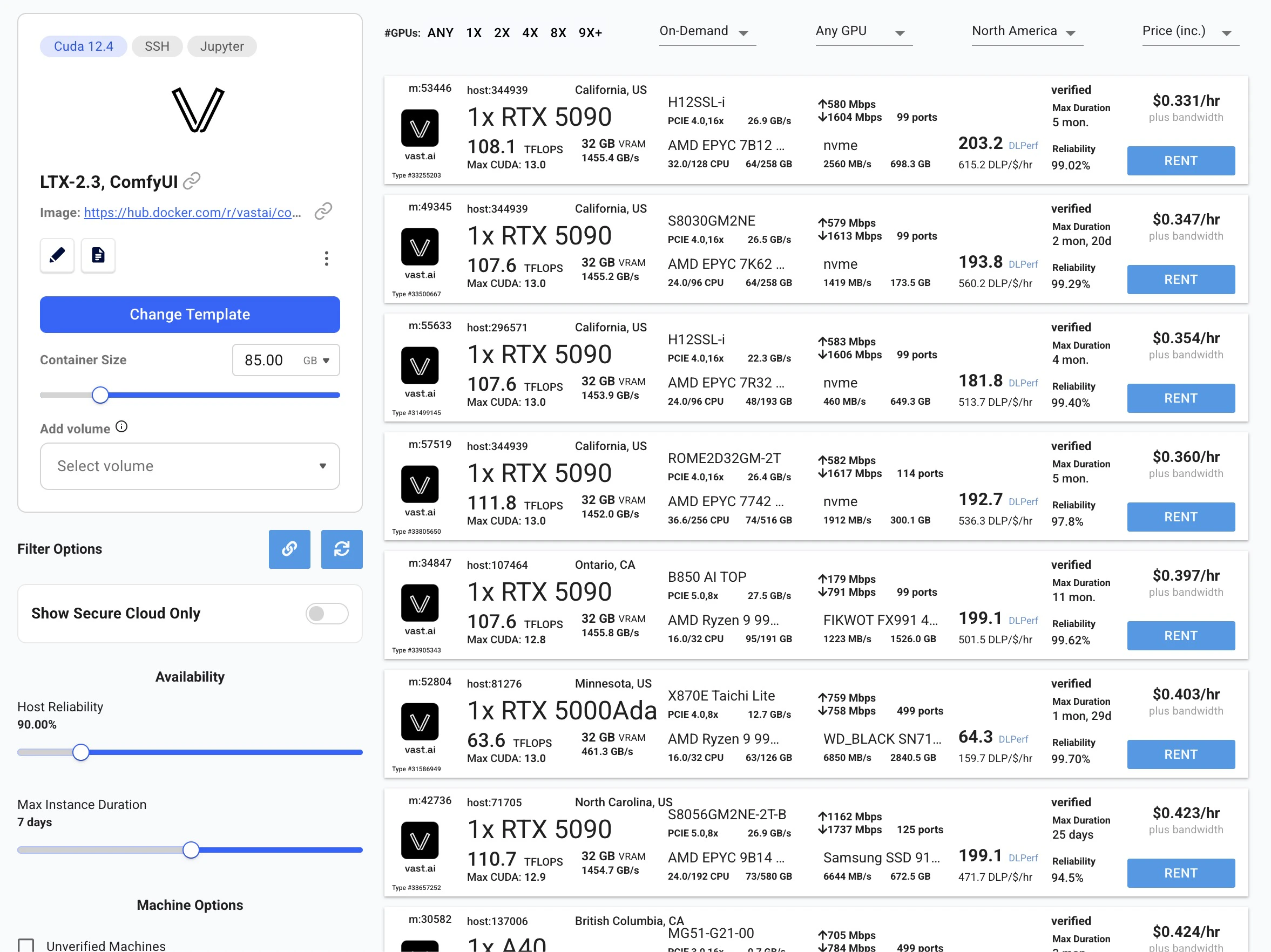
Vast.ai console showing available RTX 5090 instances with the LTX-2.3 ComfyUI template
Wait for provisioning
After renting, the instance automatically downloads all required model weights. You’ll see a loading screen while models download. On a fast connection this takes just a few minutes. Once complete, the instance status shows a green Running indicator.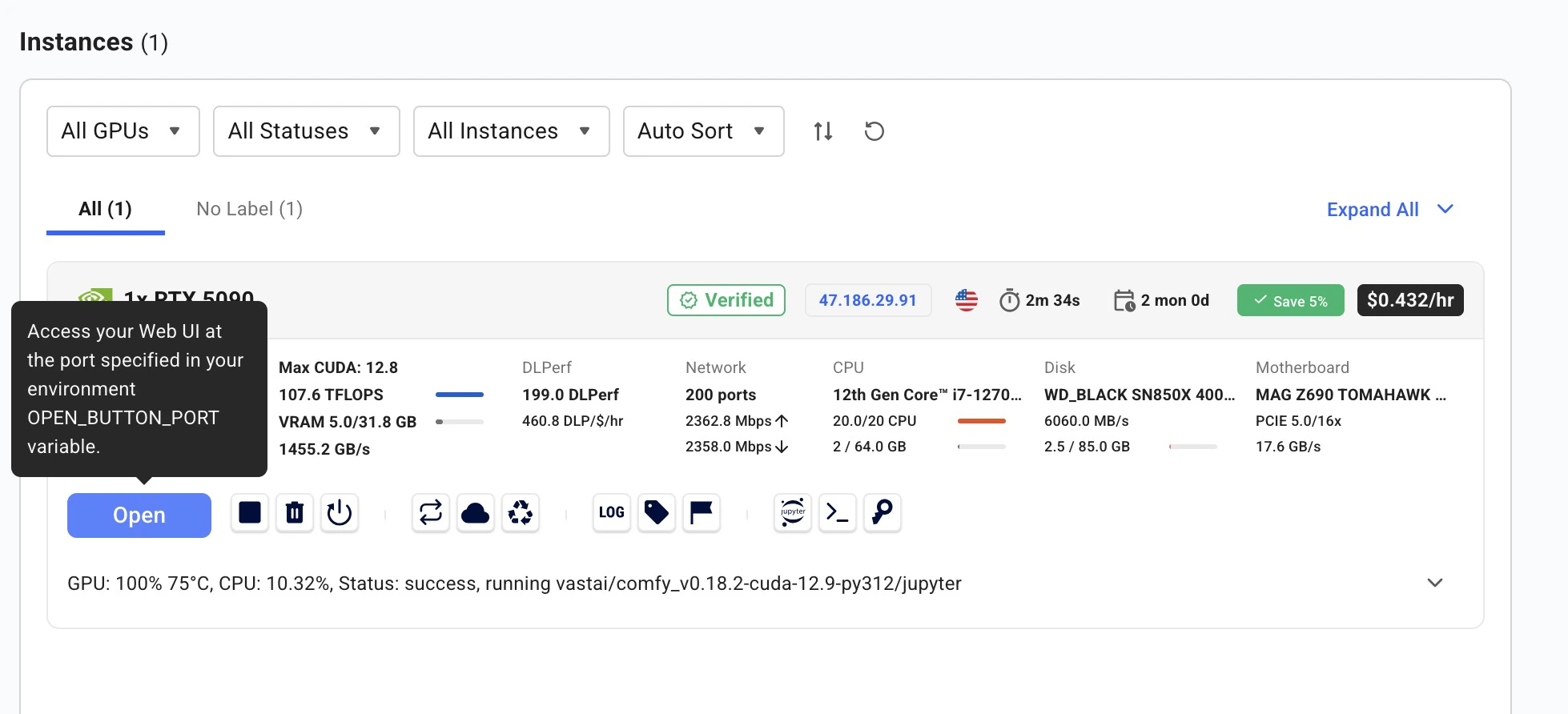
Running instance with Open button ready
Open ComfyUI
Click the Open button on your instance to launch the Instance Portal. Click Launch Application under ComfyUI to open the visual workflow editor.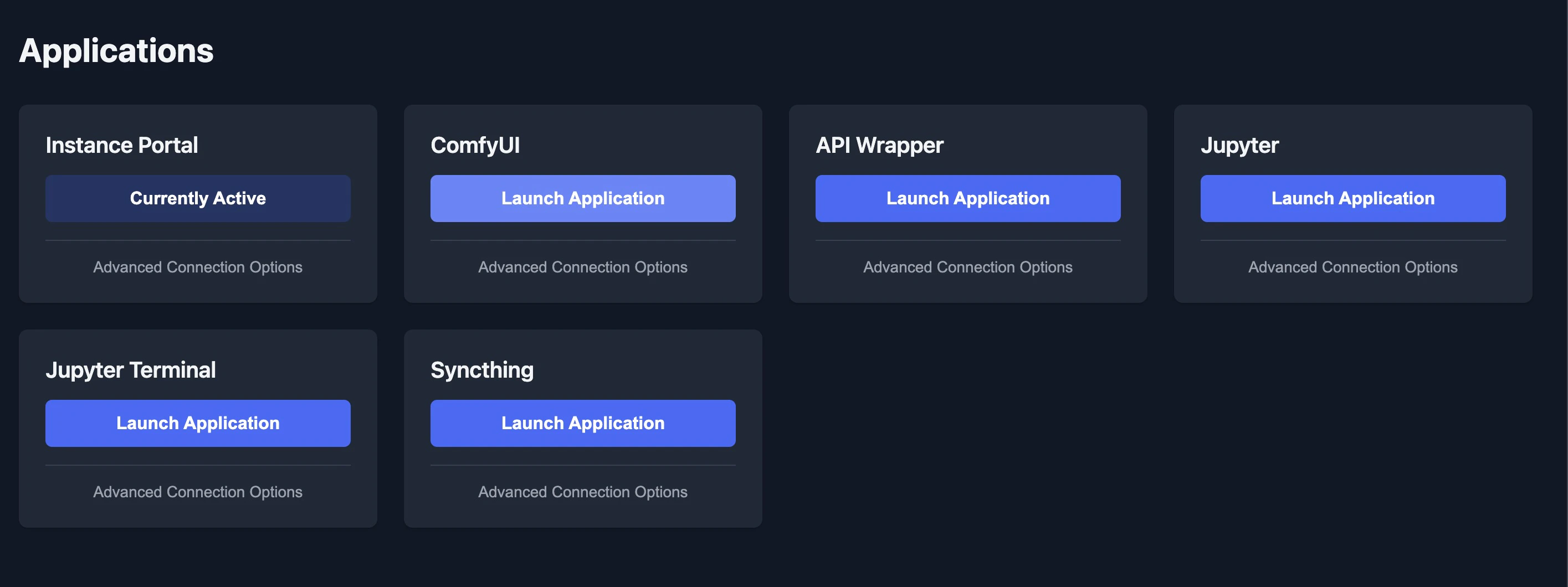
Instance Portal with ComfyUI and other available services
Text-to-Video
Select video_ltx2_3_t2v from the sidebar. Enter a descriptive prompt in the Video Generation node — describe camera angles, lighting, and motion cinematically. Adjust width, height, and frame count if desired (defaults: 1280x720, 121 frames, 25 fps). Click Run.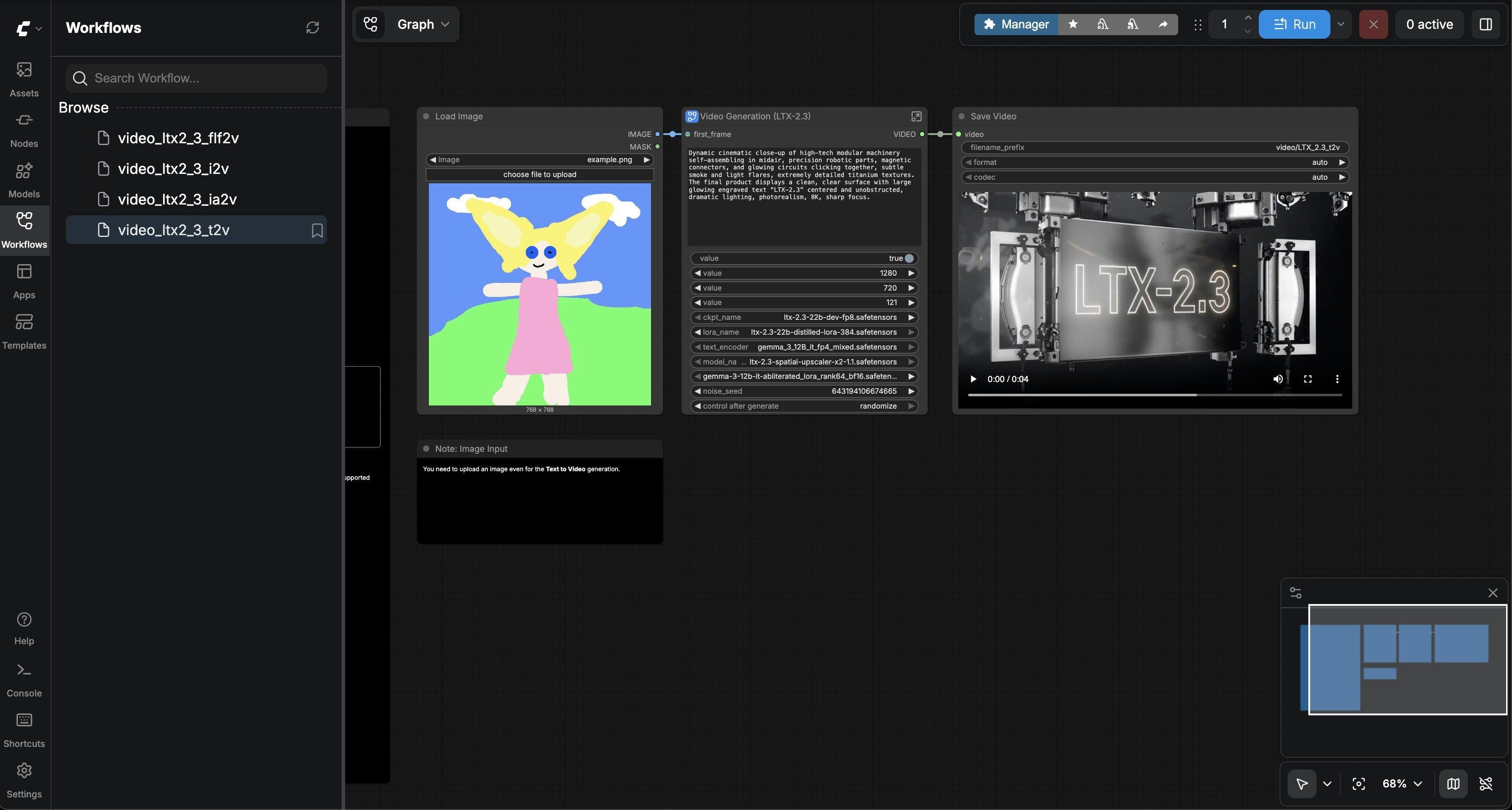
Text-to-Video workflow generating a video of high-tech machinery
Image-to-Video
Select video_ltx2_3_i2v. Upload a reference image in the Load Image node (a sample Egyptian queen image is included). Enter a prompt describing how the image should come to life. Click Run. The model uses your image as the first frame and generates consistent motion.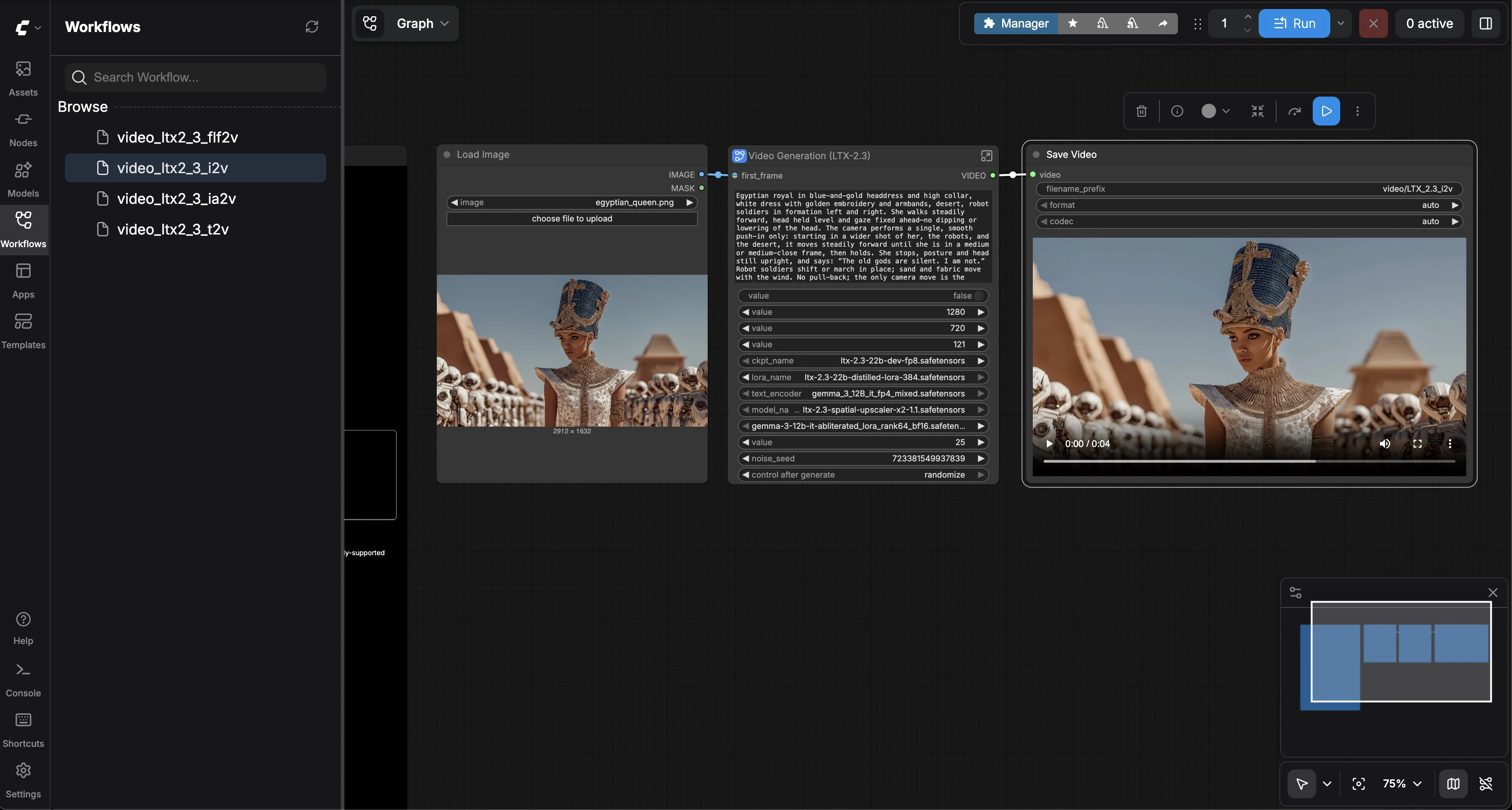
Image-to-Video workflow animating an Egyptian queen portrait
Image + Audio-to-Video
Select video_ltx2_3_ia2v. Upload a reference image and an audio file (a sample MP3 is included). Enter a prompt describing the scene. Click Run. The model generates video synchronized to the audio — lip movements match dialogue, and scene energy follows the audio’s rhythm.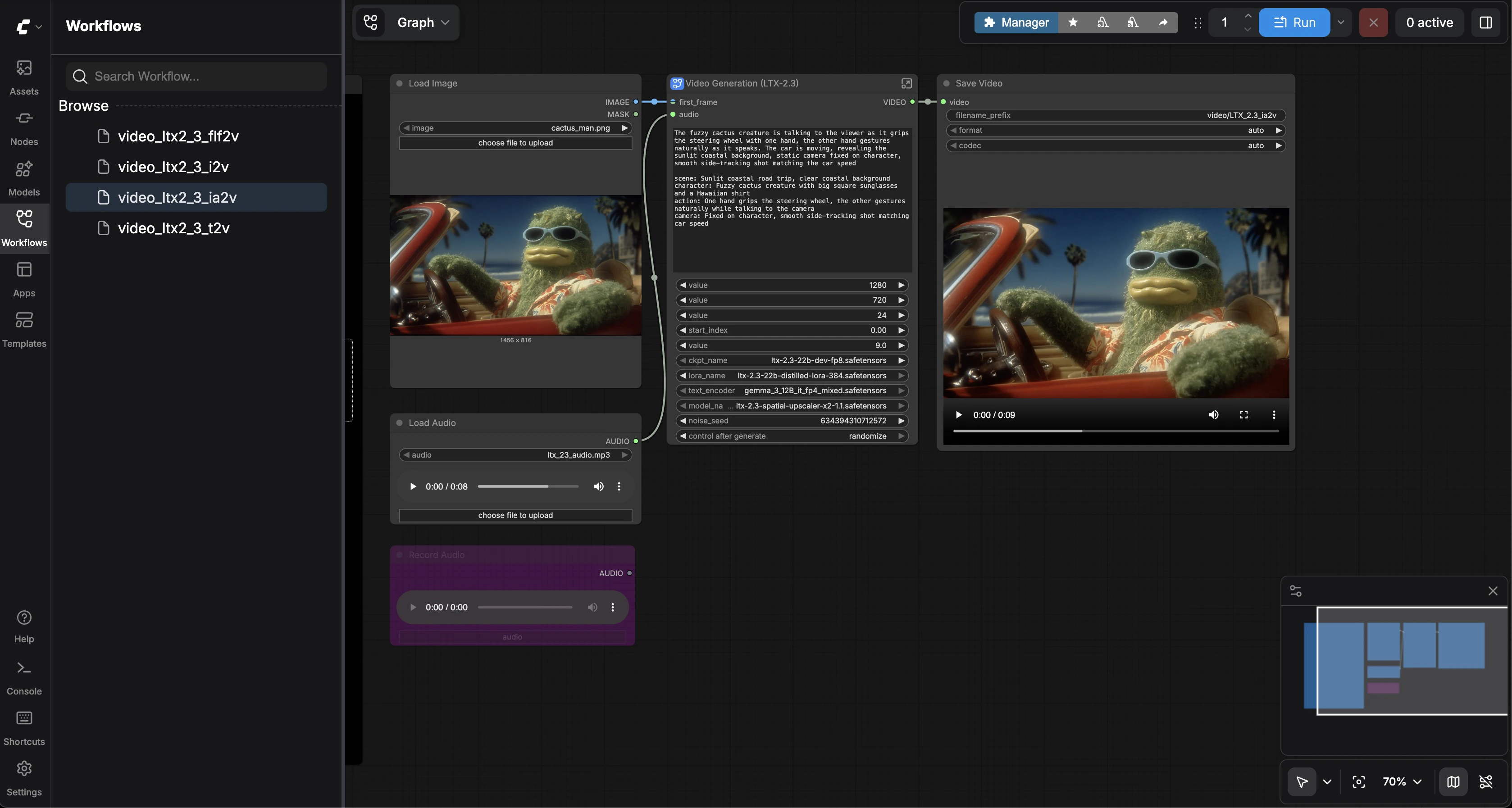
Image + Audio-to-Video workflow syncing a character to an audio track
First & Last Frame Interpolation
Select video_ltx2_3_flf2v. Load two images — a first frame and a last frame (sample car images are included). Enter a prompt describing the transition. Click Run. The model generates a smooth video interpolation between your two keyframes.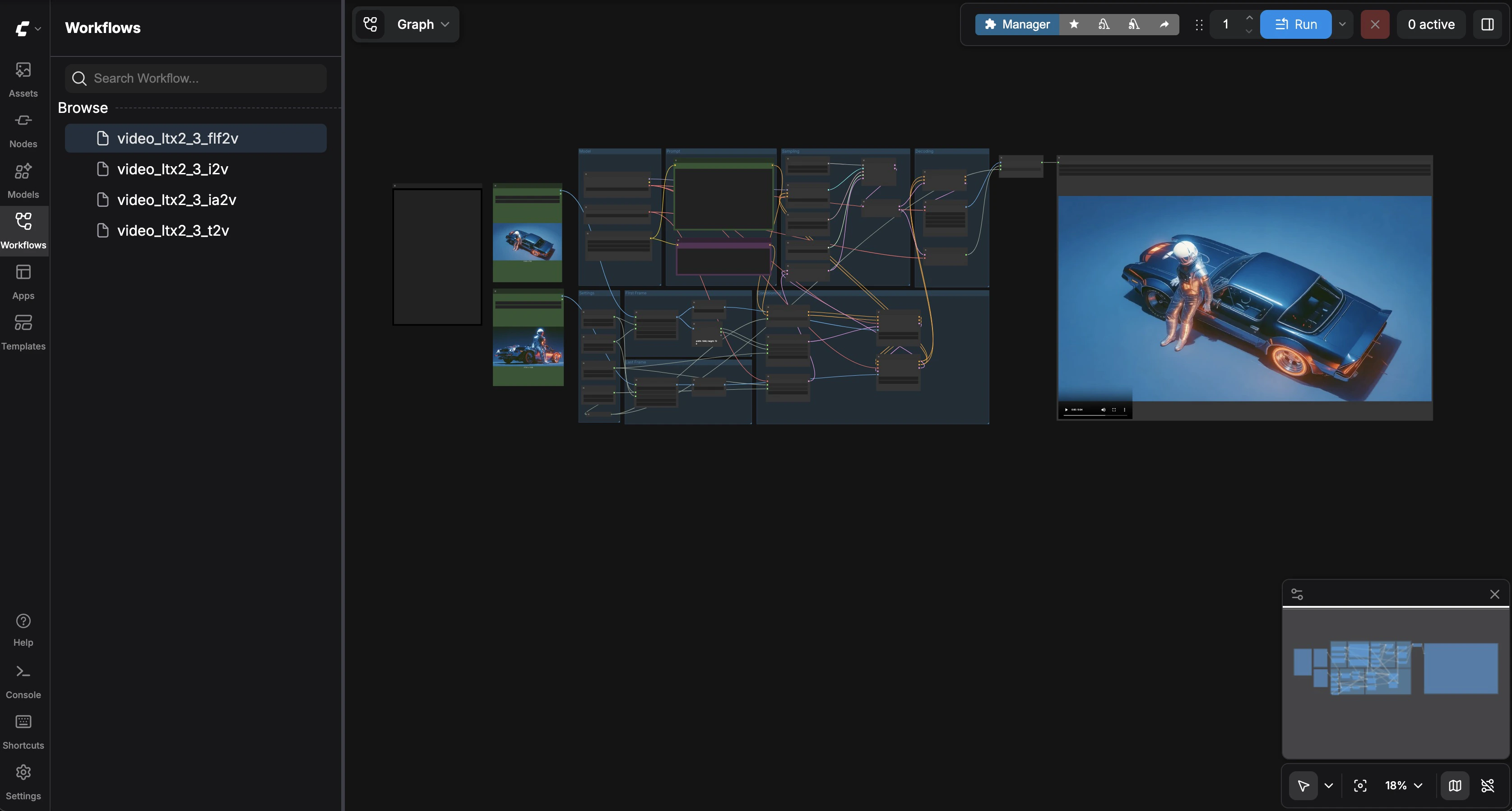
First & Last Frame interpolation generating a smooth camera transition between two car shots